
Create Gmail Account Without Phone Number: Guide
Create a new Gmail account without a mobile number using this comprehensive guide. Learn about privacy-focused Gmail account creation, setup tips, and security features.

gmail create new account without mobile number
Creating a Gmail account without a mobile number is possible. Many users prefer this method for privacy reasons.
Gmail offers flexibility in its sign-up process. You can choose email verification instead of phone verification.
This guide will walk you through the steps. You'll learn how to bypass the phone number requirement.
We'll also provide tips for a smooth Gmail setup. This includes choosing a strong password and setting up recovery options.
By the end, you'll have a secure Gmail account. Plus, you'll know how to manage it effectively.
Why Create a Gmail Account Without a Mobile Number?
Many users seek privacy and protection for their personal information. Avoiding the use of a mobile number during Gmail registration helps maintain anonymity.
Additionally, not everyone possesses a mobile phone or wishes to share their number. Some people prefer email as their primary communication tool. Here are some reasons for opting out of phone number verification:
- Maintain privacy and reduce data sharing.
- Avoid spam calls and messages.
- Use email for verification instead.
- Simplify the sign-up process without phone hassles.
Step-by-Step Guide: Gmail Account Creation Without Phone Number
Creating a Gmail account without a phone number is straightforward. First, ensure you're using a desktop browser. Mobile versions may differ slightly.
Begin by visiting the Gmail sign-up page. This is your gateway to setting up your new account. You will follow a series of steps for successful registration.
Start by clicking "Create account" and choose a suitable option. Now, let's explore these steps in detail.
Accessing the Gmail Account Creation Page
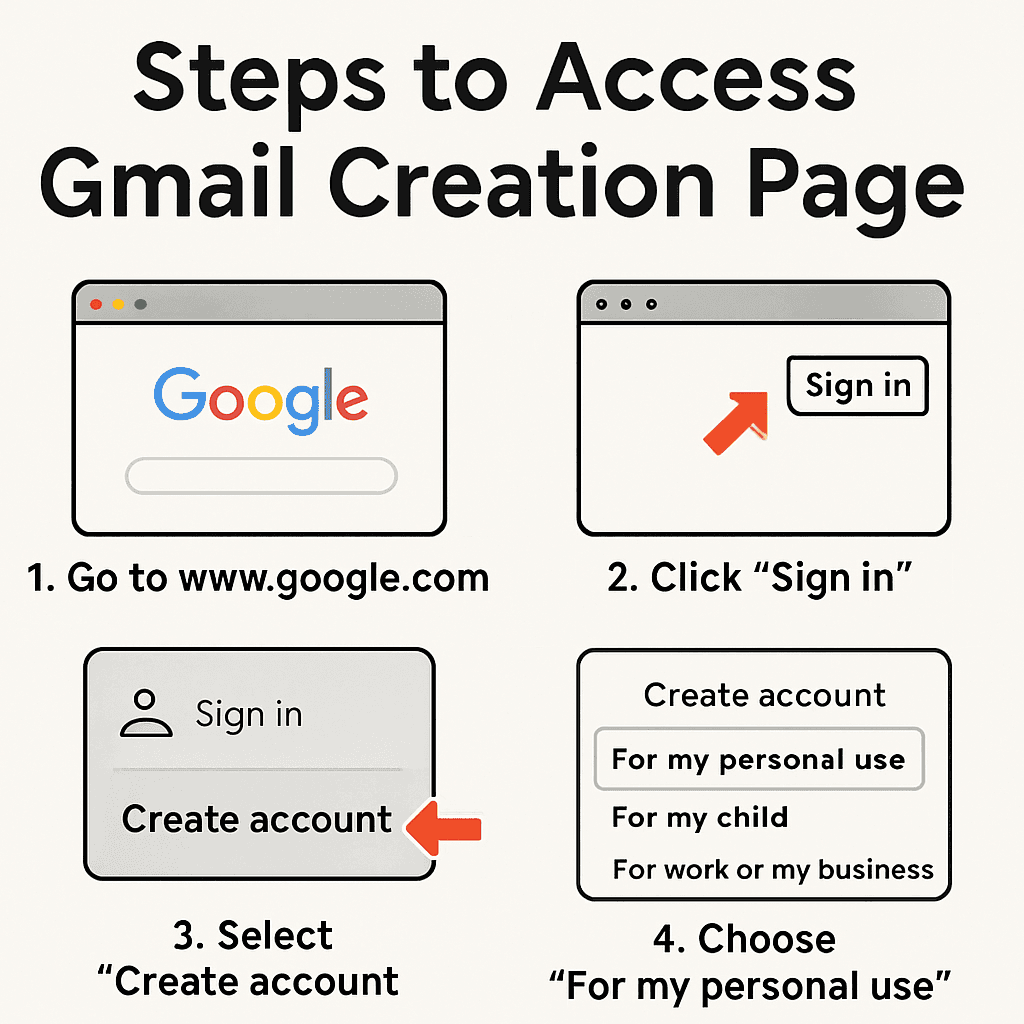
To access the Gmail account creation page, open your web browser. Navigate to the Google homepage and locate the "Sign in" option.
From there, select "Create account." You will then be redirected to the Gmail account creation page. Follow these straightforward steps:
- Open Google in your browser.
- Click "Sign in" at the top right.
- Choose "Create account."
Filling Out the Registration Form
After accessing the page, it's time to fill out the registration form. Start by entering your first and last name. Then, choose a unique username for your new Gmail account.
You'll also need to create a secure password. Make it strong and memorable. Consider using a mix of letters, numbers, and symbols.
Follow these prompts:
- Enter your name and desired username.
- Create a strong password.
- Confirm your password for security.
Skipping the Phone Number Requirement
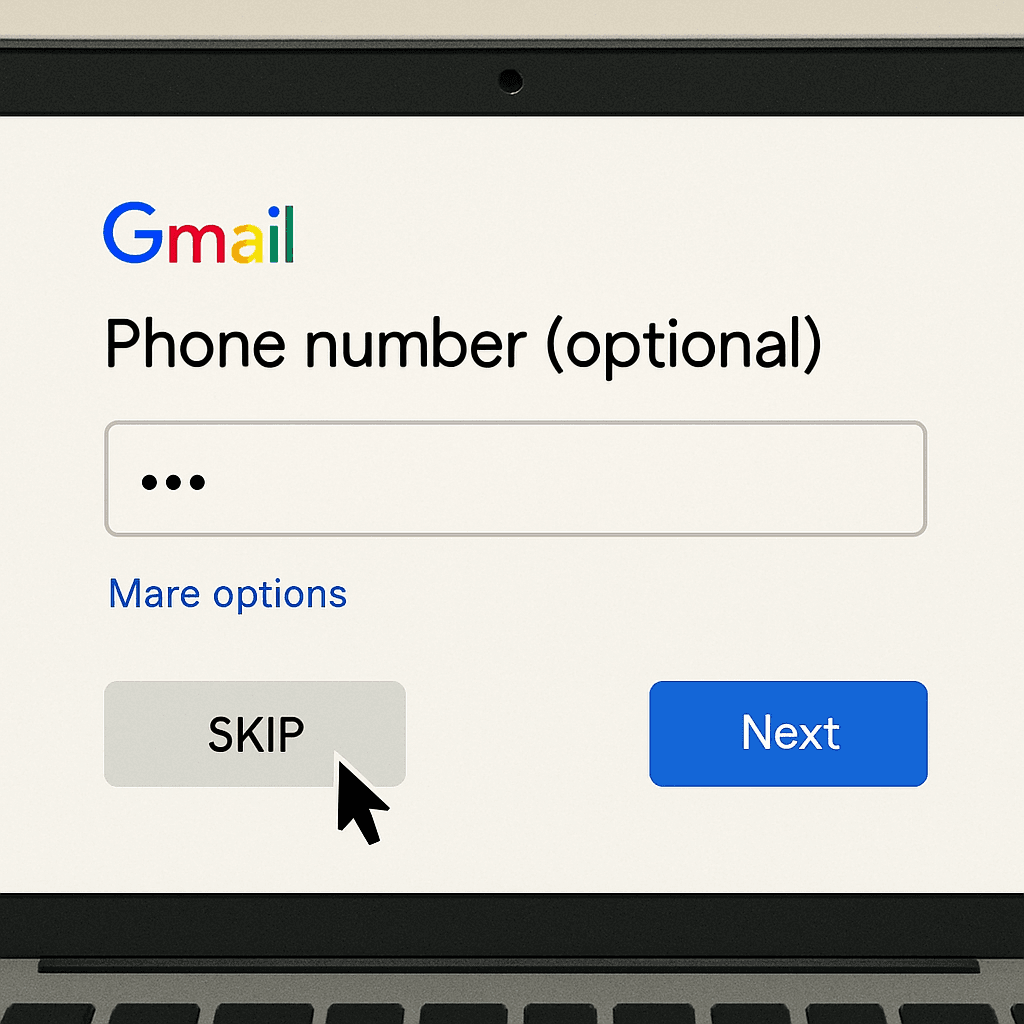
Most importantly, you can skip adding a phone number. Look for an option to bypass it. Often, there is a "Skip" button or similar at this step.
Instead, provide an alternative email for account recovery. This adds an extra layer of security.
Here are the steps to skip the phone number:
- Look for "Skip" or similar options.
- Enter an alternative email for recovery.
- Continue to complete registration.
Once done, you've created a new Gmail account without a phone number.
Tips for a Secure and Smooth Gmail Setup
To ensure your new Gmail account is secure, focus on password strength. A strong password is your first line of defense. It should be complex yet memorable.
Consider using a password manager. This tool helps you generate and store strong passwords effortlessly.
Two-factor authentication (2FA) is another important security feature. Enable 2FA to add an extra layer of protection. This requires a secondary verification step during sign-in.
Here are some quick security tips:
- Use a mix of characters in passwords.
- Change passwords regularly.
- Enable two-factor authentication.
For a smoother Gmail experience, familiarize yourself with Gmail settings. Customize your inbox layout and filters to suit your workflow.
Explore these features for enhanced use:
- Set up customized email filters.
- Use labels for better organization.
- Adjust privacy settings for security.
Taking these steps ensures a secure and seamless Gmail setup.
Troubleshooting Common Issues During Gmail Registration
During Gmail registration, users often encounter specific issues. Understanding these can save time and reduce frustration.
If you face verification errors, double-check your information. Ensure you enter the correct details in each field.
Sometimes, Gmail might flag an issue with your username choice. Common reasons include the name being too similar to an existing user or restricted by Gmail policies.
Here's how to resolve common hurdles:
- Double-check all entries for accuracy.
- Try alternative usernames if needed.
- Revisit your internet connection to ensure stability.
Addressing these issues promptly ensures smooth registration without hitches.
Managing Multiple Gmail Accounts and Bulk Account Creation
Managing several Gmail accounts can seem daunting but is made easy with the right approach. Efficient organization is key to juggling multiple accounts without stress.
For seamless management, consider these tips:
- Use different browsers or incognito modes to access multiple accounts simultaneously.
- Label and filter emails in each account for better organization.
- Regularly update account information and security settings.
If you're looking to create multiple accounts at once, explore tools designed for bulk Gmail account creation. These can simplify the process while ensuring adherence to Google's terms and conditions.
Gmail Account Help and Support Resources
If you encounter issues with your Gmail account, there's no need to worry. Google provides a range of resources to help solve problems efficiently.
To access support, consider these options:
- Visit the Google Help Center for detailed guides.
- Join the Gmail Support Forums for community advice.
- Contact Google support directly for personalized assistance.
Final Gmail Account Tips and Best Practices
Maintaining a secure Gmail account ensures your information is protected. Regularly update your security settings and passwords for enhanced safety.
Consider these best practices:
- Enable two-factor authentication for added security.
- Regularly check for suspicious account activity.
- Keep your account recovery details updated for easy recovery.
Exploring Gmail's features can improve your experience, ensuring efficient email management.
Browse Undetected. Stay Private.
Unique browser fingerprints, built-in proxy support, and anti-detection technology. Try GoUndetected free for 7 days.
Available for macOS and Windows · No credit card required