
How to Detect and Fix Browser Fingerprint Mismatches Before They Trigger a Ban
Learn how browser fingerprint mismatches happen, how to spot them early, and how to fix drift before it triggers bans. Built for marketers, affiliates, e-commerce teams, and agencies.

AdsPower’s March 2026 release 336 notes showed ClientRects mismatches still leaking through FlowerBrowser profiles unless operators forced Chrome 126 user-agent parity (AdsPower release 336), and GoLogin’s March 2026 update warned that timezone drift on Asia geo profiles was triggering bans (GoLogin March update). That combo means you have to detect and fix fingerprint mismatches before the platforms do.
For marketers, e-commerce operators, affiliates, and agencies, the real challenge is that fingerprint issues are often invisible until the damage is done. You may see repeated verification prompts, session resets, ad account restrictions, or sudden trust drops without realizing the browser itself is leaking inconsistent signals. The good news is that these problems are usually detectable before they become costly. With the right checks, you can identify where your setup is drifting, correct the weak points, and keep your workflows stable across accounts.
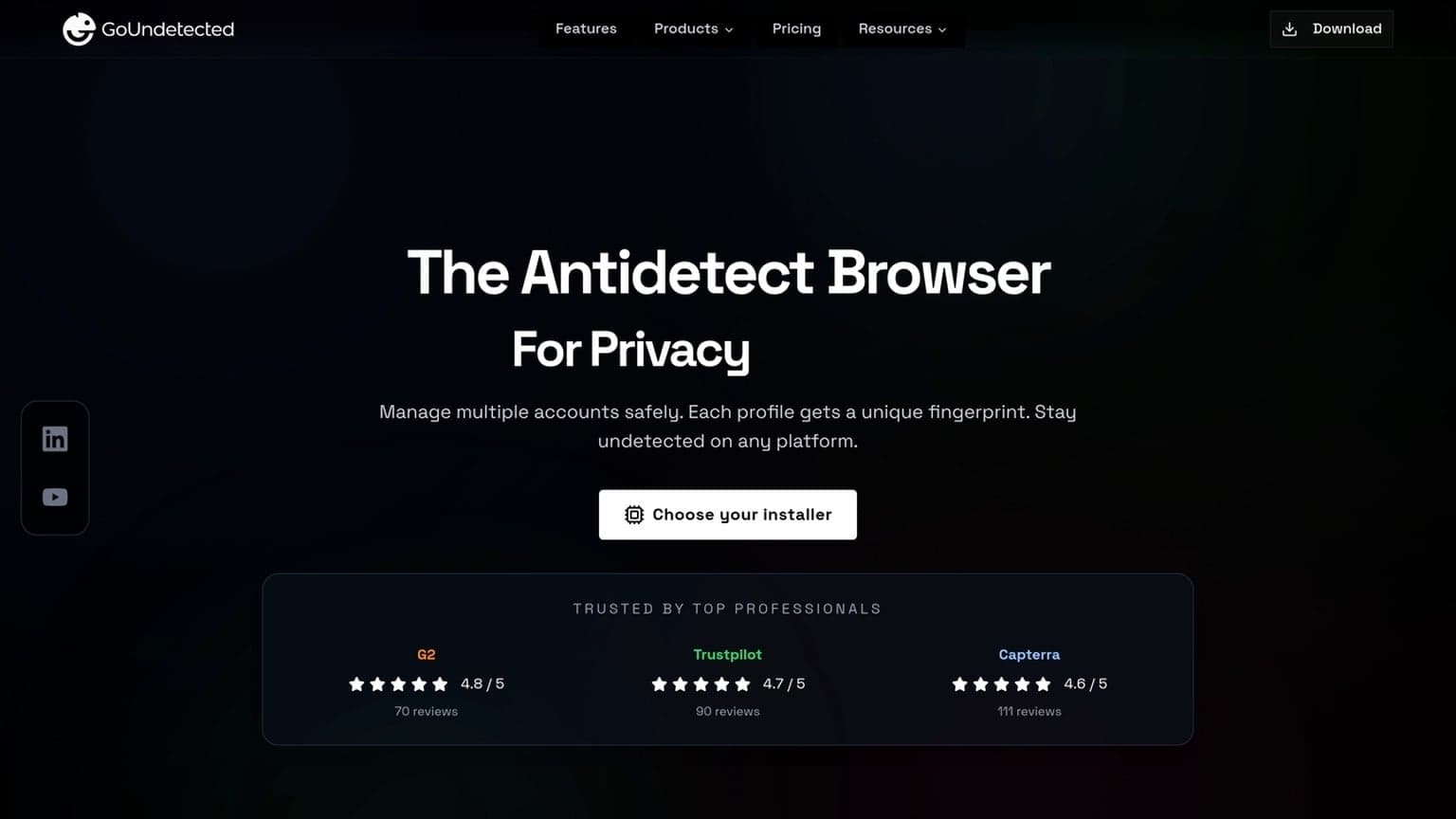
That’s where a disciplined setup matters. Tools like GoUndetected.io are built for teams that need cleaner profile separation, more consistent browser environments, and fewer accidental overlaps between accounts. When your operations depend on reliability, having a browser workflow that helps reduce fingerprint inconsistencies can make the difference between smooth scaling and constant account recovery.
Browser Fingerprint Basics
Before you can protect an account or diagnose a detection issue, it helps to understand what a browser fingerprint actually is. In simple terms, it is the collection of attributes your browser and device expose when you load a page. Sites combine these signals to estimate whether a visitor is unique, familiar, or potentially automated.
What It Is
A browser fingerprint is built from many small details: user agent, screen size, language, timezone, installed fonts, WebGL output, canvas behavior, and more. None of these signals alone is always decisive, but together they create a profile that can be remarkably stable.
For multi-account workflows, that stability matters. If two sessions present the same fingerprint, platforms may connect them even if the IP address changes. For a broader technical overview, see MDN’s browser API documentation.
Why It Changes
Fingerprints are not perfectly fixed. They can shift when you update your browser, install extensions, change display settings, switch devices, or move between networks and regions. Even small changes, like a new font pack or a different GPU, can alter how a site sees your session.
That is why a practical fingerprinting strategy focuses on consistency. A useful way to think about it is:
- Hardware changes — new device, monitor, or graphics driver
- Software changes — browser updates, extensions, OS patches
- Environment changes — language, timezone, proxy, or location
Why Sites Check
Websites check fingerprints to reduce fraud, stop abuse, and understand whether a session looks legitimate. E-commerce, social platforms, ad networks, and marketplaces all use fingerprinting as part of their risk scoring, especially when logins, payments, or account creation patterns seem unusual.
In practice, fingerprint checks help sites spot repeated behavior across accounts, detect automation, and flag impossible travel or device switching. That is why a clean IP alone is rarely enough; platforms compare multiple signals together. The more aligned your browser environment is, the less likely it is to trigger suspicion.
Common Mismatch Causes
Even when your account activity is legitimate, small inconsistencies can trigger a fingerprint mismatch. Most detection systems look for patterns across device signals, browser behavior, and network identity, so a single change may be harmless while several changes in a short window can raise risk. The three most common sources are device drift, extension noise, and network swaps.
Device Drift
Device drift happens when your browser fingerprint slowly stops matching the environment it claims to represent. This can include changes in OS version, screen size, timezone, language, GPU, or even font availability. Individually, these signals may seem minor, but together they create a profile that looks unstable.
To reduce drift, keep the fingerprint profile consistent for each account and avoid unnecessary system updates during active sessions. If you need to test changes, isolate them first and check how they affect the full fingerprint set, not just one field.
Extension Noise
Browser extensions can add hidden variability through injected scripts, altered headers, and extra requests. Privacy tools, coupon add-ons, automation helpers, and even translation extensions may change page behavior enough to stand out from a clean browser profile.
- Disable nonessential extensions for managed accounts.
- Use separate browser profiles for different workflows.
- Audit permissions before adding any new extension.
If you must use extensions, keep the set minimal and consistent. For teams that manage many accounts, a controlled profile strategy is usually safer than trying to “fix” issues after they appear.
Network Swaps
Frequent IP changes, proxy rotation, and switching between Wi‑Fi, mobile, and VPN connections can make an account look like it is jumping locations. That is especially risky when the new network does not match the device’s timezone, language, or historical login pattern.
A simple rule is to align the proxy type with the account’s expected geography and keep it stable during a session. For more on fingerprint consistency, see the GoUndetected.io approach to multi-account isolation.
How to Detect Issues
Once you’ve set a baseline, the next step is spotting when something changes. Detection works best when you compare signals side by side, validate them with repeatable tests, and keep a clean record of every adjustment so you can trace the cause fast.
Compare Signals
Start by checking whether your browser, device, and network signals all tell the same story. A mismatch between time zone, IP location, language, or WebRTC output is often the first clue that an account environment looks inconsistent. For a quick reference, compare the most common signals below:
| Signal | What to Check | Why It Matters |
|---|---|---|
| IP / Geo | Country, city, ASN | Must align with the account’s expected region |
| Browser | User agent, version, platform | Inconsistent values can trigger trust issues |
| Device | Screen, hardware, fonts | Helps reveal fingerprint drift |
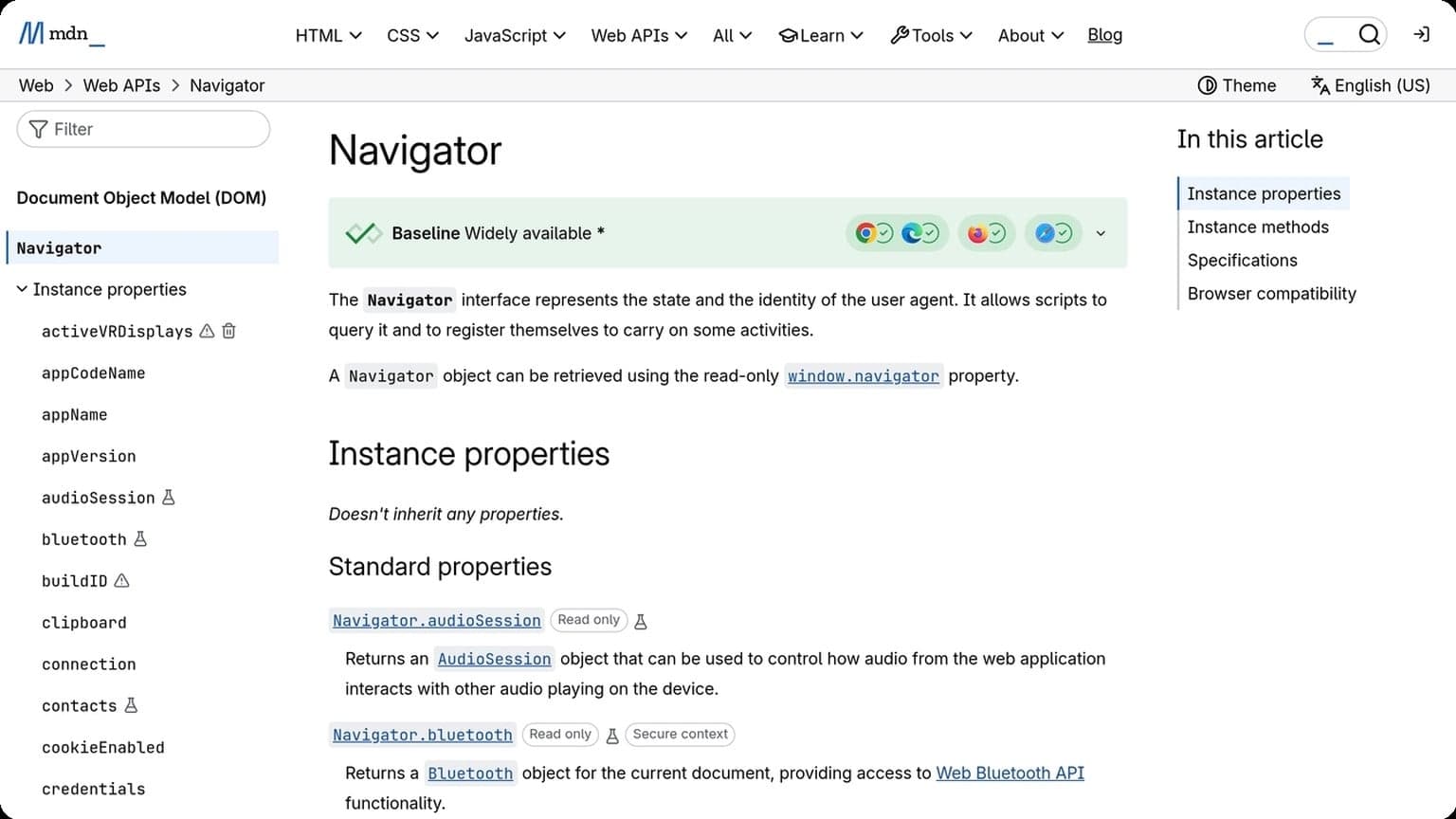
Use a browser fingerprint checker and compare results against the account’s normal pattern, not just a one-time snapshot. If you need a technical baseline, review the MDN Navigator docs and your platform’s own help center for expected behavior.
Run Tests
After comparing signals, run controlled tests to confirm whether the issue is real or just a temporary anomaly. Test one variable at a time: proxy, profile, cookie set, or browser version. That makes it easier to isolate the trigger instead of guessing.
A practical test loop looks like this:
- Open the same account in the same profile.
- Change only one setting.
- Recheck fingerprint, login, and page behavior.
- Record whether the warning, block, or challenge appears again.
Log Changes
Keep a simple change log for every profile and account. Note the date, proxy used, browser version, fingerprint edits, and any platform response. This creates an audit trail that makes recurring issues much easier to spot.
When you manage multiple accounts, logs also help you separate real platform risk from your own configuration mistakes. If a profile starts failing after a specific update, your notes should show exactly what changed and when, so you can roll back quickly and stabilize the setup.
Fixing Browser Drift
Browser drift happens when your fingerprint slowly changes across sessions, making the same account look like it is being handled by multiple devices. The fix is not one setting alone, but a stable combination of browser, extension, and profile choices that stays consistent over time.
Match Settings
Keep the browser environment aligned with the proxy, timezone, language, and operating system signals your account should naturally show. Even small mismatches can create a pattern that anti-fraud systems flag, especially when they repeat across logins.
A practical baseline is to standardize these core values before you scale:
- Timezone and geolocation
- Language and locale
- User agent and OS version
- Screen resolution and device scale
If you manage multiple accounts, build a simple mapping table and reuse it consistently. For broader browser behavior guidance, see the MDN Navigator documentation and keep your setup as close to real-user patterns as possible.
Stabilize Extensions
Extensions can help with workflow, but they also add fingerprint noise if they are installed, removed, or updated unpredictably. The safest approach is to use the same extension set per profile and avoid mixing “work” and “testing” add-ons on the same identity.
When an extension is necessary, lock it down operationally:
- Install only what the profile truly needs.
- Disable auto-additions from the Chrome Web Store.
- Review permissions before enabling.
- Keep update timing consistent across profiles.
Use Consistent Profiles
Profiles should behave like durable identities, not disposable tabs. Reusing the same profile for the same account preserves cookies, storage, and browser state, which reduces suspicious resets and helps sessions age naturally.
For multi-account teams, the rule is simple: one account, one profile, one routine. If you need a browser built for that kind of repeatable isolation, GoUndetected is a strong option to keep profiles organized and reduce drift without adding operational complexity.
Preventing Future Bans
Once you’ve recovered access, the goal is to make repeat bans less likely by tightening your account hygiene. That means separating identities, changing settings in a controlled way, and watching for early warning signs before a platform flags the profile again.
Keep Profiles Separate
Each account should behave like a distinct user, not a cloned session. Keep cookies, fingerprints, proxies, payment details, and login patterns isolated so one mistake doesn’t create a cross-account link.
A practical separation checklist looks like this:
- Use one browser profile per account.
- Assign unique proxies or IPs where required.
- Avoid reusing emails, phone numbers, or recovery data.
- Store assets and notes in separate folders or workspaces.
Update Carefully
Frequent changes can look suspicious, especially if they happen all at once. Update profile data, device settings, or automation rules gradually so the account history remains consistent and believable.
Before making any change, compare the risk level of what you’re editing and roll out updates in stages:
- Change one variable at a time.
- Test on a low-value account first.
- Wait and observe for alerts or reduced reach.
- Document what worked so you can repeat it safely.
| Update Type | Risk Level | Best Practice |
|---|---|---|
| Profile photo / bio | Low | Refresh gradually |
| Device or fingerprint settings | High | Change only when necessary |
| Proxy / IP rotation | Medium | Keep it consistent per profile |
Monitor Regularly
Prevention works best when you catch issues early. Review logins, challenge requests, performance drops, and unusual session behavior on a schedule so you can fix weak spots before they become a ban.
For platform-specific signals, use the official help centers and policy pages, such as Instagram Help or Google Account Help, and pair them with your own internal checks. If you need a cleaner workflow for managing multiple profiles, GoUndetected can help keep everything organized and easier to audit.
GoUndetected.io Workflow
A reliable antidetect workflow is less about “hiding” and more about keeping each account environment consistent. In GoUndetected.io, that means building profiles once, validating them with a repeatable process, and rotating only when the setup is stable. The result is cleaner attribution, fewer login challenges, and less operational drift across accounts.
Profile Setup
Start by creating one browser profile per account or client, then lock in the variables that should stay consistent over time. Keep the profile name, proxy, timezone, language, and device fingerprint aligned with the target market and use case. If you need a reference for browser-level privacy settings, the Chrome help center is a useful baseline for understanding what modern browsers expose by default.
A practical setup sequence looks like this:
- Create the profile and assign a dedicated proxy.
- Set locale, timezone, and screen parameters to match the account region.
- Log in once, complete verification, then avoid unnecessary changes.
Ongoing Checks
After setup, monitor the profile for drift. Small changes—like a proxy mismatch, a session reset, or a sudden timezone shift—can trigger platform scrutiny. Check fingerprints, cookies, and login history on a regular cadence, especially after updates or team handoffs.
Use a simple review loop so issues are caught early:
- Confirm the proxy is active and geographically consistent.
- Verify the browser fingerprint has not changed unexpectedly.
- Review recent platform alerts, captchas, or re-auth prompts.
Safe Rotation
Rotate only when you have a clear reason, such as scaling a campaign, replacing a proxy, or moving an account to a new operator. Safe rotation means changing one variable at a time and keeping a record of what changed, when, and why. That discipline makes troubleshooting much faster if a platform flags the session.
For teams managing multiple accounts, a controlled handoff is usually safer than a full reset. The table below shows the most common rotation choices:
| Rotation Type | Best For | Risk Level |
|---|---|---|
| Proxy-only rotation | Routine IP replacement | Low |
| Full profile rotation | New operator or new market | Medium |
| Fingerprint reset | Profile recovery after instability | Higher |
Need more hands-on playbooks? Read OpenClaw for TikTok, Anti-Detection Browser vs Anti-Detection Tool: Which One Fits Your Workflow?, and How to create a Facebook business page.
Browse Undetected. Stay Private.
Unique browser fingerprints, built-in proxy support, and anti-detection technology. Try GoUndetected free for 7 days.
Available for macOS and Windows · No credit card required