
How to remove TikTok watermark
Learn how to remove TikTok watermark, delete your account, clear app data, and protect your privacy with a step-by-step guide designed to help you stay in control.

If you’re looking for how to remove TikTok watermark in 2026, you’re probably trying to repurpose a clip for Reels, Shorts, ads, or a client workflow without the distracting TikTok logo and username stamp. The good news is that there are several reliable ways to do it — from free download tools and CapCut to AI-based editors — but the best method depends on whether you care most about speed, video quality, safety, or platform compliance.
This guide goes beyond a simple list of tools. We’ll compare the most practical ways to remove TikTok watermark, explain when each approach is worth using, and show you what to avoid if you’re managing content at scale. We’ll also cover mobile-only workflows, desktop workflows, and the legal and brand-policy considerations that many articles skip. If you’re a creator, marketer, or agency handling multiple TikTok accounts, this matters even more because the way you download, edit, and repost content can affect both performance and account stability.
And if your workflow involves repeated downloading, editing, testing, and reposting across accounts, it’s worth thinking about operational hygiene too. Tools like GoUndetected.io can help with broader TikTok account management and browser isolation when you’re coordinating content across profiles — but the first step is choosing the right TikTok watermark remover method for the job. Let’s break down the options clearly, with practical steps and real-world tradeoffs.
TikTok Removal Basics
Before you remove TikTok from your workflow, it helps to separate three different actions: deleting the account, uninstalling the app, and backing up anything you may need later. They solve different problems, and mixing them up can lead to lost content, broken logins, or incomplete cleanup.
Account Deletion
Deleting a TikTok account is the most permanent option. It removes your profile from public view and starts a deactivation period before TikTok fully deletes the data tied to that account. If you manage multiple accounts, confirm which profile is being removed before you proceed.
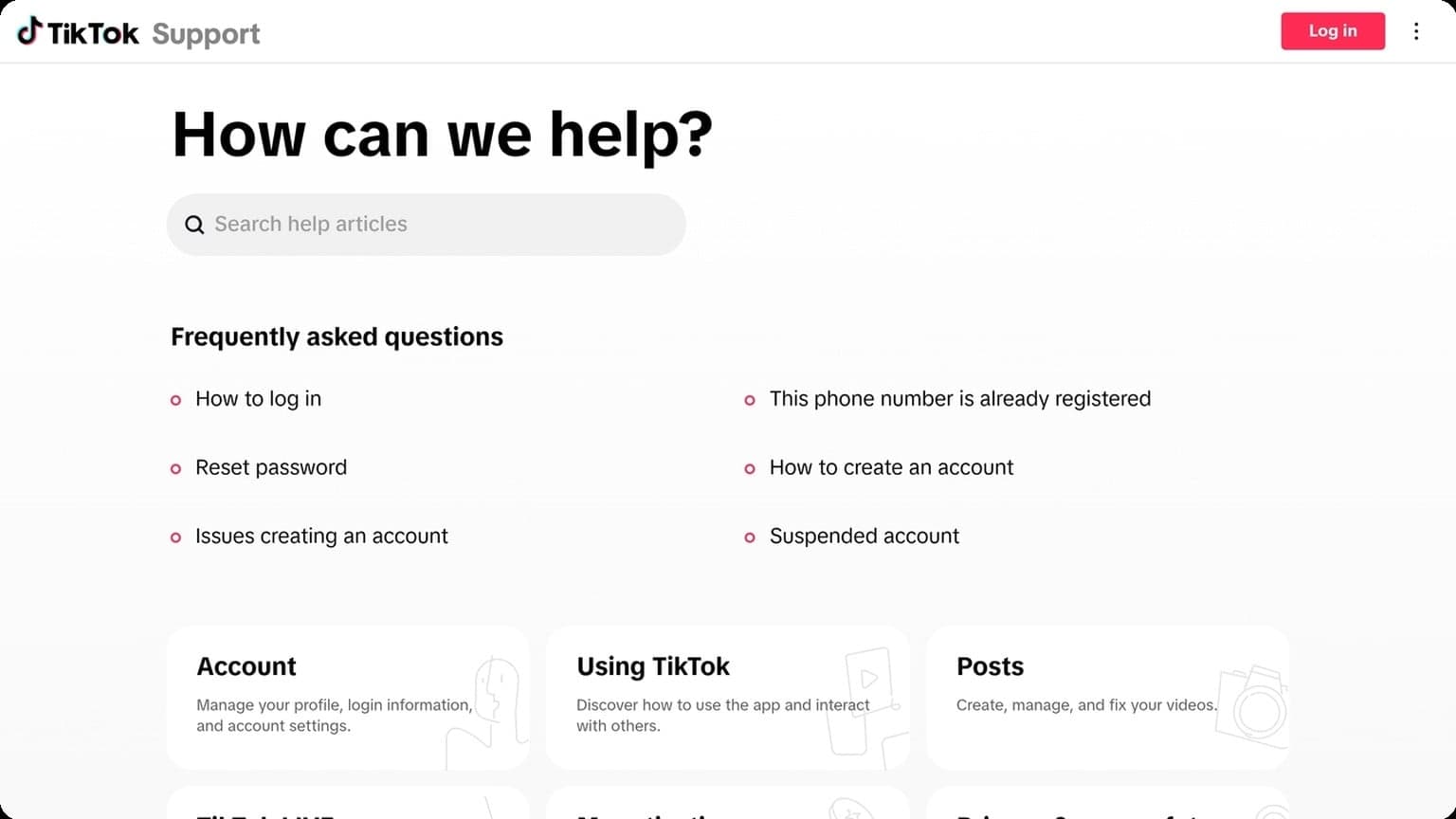
According to TikTok’s help center, some information may still remain in backups or for legal/compliance reasons, even after deletion. Review the official guidance at TikTok Support so you understand what disappears immediately and what may persist for a limited time.
App Uninstall
Uninstalling the app only removes TikTok from the device; it does not delete the account. This is useful when you want to stop using the app on a phone, reduce distractions, or clear local storage without affecting the profile itself.
If you use TikTok across multiple devices, uninstalling on one device won’t sign you out everywhere. For a cleaner reset, pair uninstalling with a manual logout and a quick check of connected sessions.
- Removes the app and cached files from the device
- Does not erase your TikTok account or posted content
- May free storage and reduce background activity
- Useful before switching devices or rebuilding a clean account environment
Data Backup
Back up anything you may want before deletion or uninstalling, especially videos, captions, analytics screenshots, and login details for related accounts. Once an account is deleted, recovery options are limited, so exporting first is the safer move.
A simple backup checklist keeps the process organized and reduces mistakes when managing several profiles at once.
- Download original videos and drafts you want to keep
- Save profile details, usernames, and bio text
- Export analytics or take screenshots of performance data
- Store recovery emails, phone numbers, and 2FA codes securely
Delete Your TikTok Account
Deleting your TikTok account is a straightforward process, but the platform gives you a short recovery window before the deletion becomes permanent. If you are closing an old profile, cleaning up a brand account, or separating personal and business activity, it helps to understand the exact path and what happens next.
1) Settings path
On the app, open Profile, tap the Menu icon, then go to Settings and privacy > Account > Deactivate or delete account. TikTok may ask you to verify your identity before continuing, especially if you have 2FA enabled or recent login activity looks unusual.
Choose Delete account permanently, review the notices, and confirm. If you want to double-check the official flow, TikTok’s help center documents the current steps at support.tiktok.com.
2) Deactivation window
After you confirm deletion, TikTok typically places the account into a deactivated state first. During this window, the profile is not publicly visible, but you may still be able to reverse the process by logging back in and canceling the deletion request.
- Typical recovery period: about 30 days
- Account visibility: hidden from other users
- Cancellation option: available by signing back in
3) Final deletion
Once the deactivation window expires, TikTok begins permanent deletion. At that point, your videos, profile data, and account activity are no longer recoverable through normal account access. This is the stage to reach if you want a clean break, not just a temporary pause.
Before you confirm, download anything you may need later, such as drafts, analytics screenshots, or post-performance records. For creators and teams managing multiple accounts, it is also smart to isolate logins and workflows first; tools like GoUndetected can help keep account operations organized before you retire a profile.
Remove App and Cache
Before you reconfigure a device or profile, remove the app and its leftover data so you start from a clean baseline. This reduces conflicts from stale sessions, corrupted settings, and cached identifiers that can interfere with account management workflows.
Uninstall the app cleanly
Start with a standard uninstall first, then confirm the app is fully removed from the device. On mobile, use the system app manager; on desktop, remove the application from the OS and restart if prompted. If you use multiple browser profiles or workspaces, make sure you close every active session before deleting anything.
- Sign out of the app and close all windows.
- Uninstall from the device settings or applications menu.
- Restart the device to release locked files.
- Recheck that the app no longer appears in the installed apps list.
Clear cache to remove residual data
Even after uninstalling, cached files can remain in system storage, browser folders, or app-specific directories. Clearing them helps eliminate temporary assets, session fragments, and old preferences that may be reused on the next install. For browser-based tools, also clear site data and cookies through the browser settings.
If you need platform-specific guidance, use the official help pages from Apple, Google, or Microsoft before deleting anything manually. Their documentation is the safest reference for cache paths and permission prompts.
Clean up storage and leftover files
Finish by removing leftover folders, downloads, logs, and backups associated with the app. This is especially important on shared devices or when you manage multiple accounts, because stray files can create unnecessary overlap between sessions.
| Cleanup area | What to remove | Why it matters |
|---|---|---|
| App data | Local settings, profile files | Prevents old configurations from returning |
| Cache | Temporary files, thumbnails, session data | Reduces reuse of stale artifacts |
| Storage leftovers | Logs, backups, downloads | Keeps the device clean and organized |
Erase TikTok Data
Clearing TikTok data is a practical way to reduce stale recommendations, refresh app behavior, and limit the amount of activity tied to a profile. If you manage multiple accounts, it also helps keep each profile’s signals cleaner and more distinct.
Watch History
Watch history is one of the strongest signals in TikTok’s recommendation engine. When you clear it, you remove the recent viewing trail that influences future For You content, making it easier to reset what the app thinks you want to see.
To do it, open TikTok’s Help Center guidance for your app version, then go to your profile settings and look for activity or content history controls. For repeat maintenance, use this simple routine:
- Open TikTok and go to Settings and privacy.
- Find Activity Center or Watch history.
- Review and clear recent viewing data.
For account operators, clearing watch history is especially useful before testing new content niches or switching a profile to a different audience segment.
Downloads
TikTok downloads can leave behind a local trail on your device, including saved videos, drafts, and cached media. Removing them helps reclaim storage and reduces the chance that old assets get reused accidentally across accounts.
Focus on both app-side and device-side cleanup. In practice, that means checking downloaded files, emptying the app cache, and deleting any media you no longer need. A quick comparison helps:
| Data type | Where it lives | Why clear it |
|---|---|---|
| Downloaded videos | Device storage | Frees space and avoids reuse |
| Cached media | TikTok app | Resets stale app behavior |
| Draft assets | App storage | Prevents accidental cross-posting |
Permissions
App permissions determine what TikTok can access on your device, from camera and microphone to contacts and location. Tightening these settings is a fast way to reduce unnecessary data exposure and keep each account environment more isolated.
Review permissions regularly and revoke anything that is not essential for posting or editing. The most important ones to audit are:
- Camera and microphone for recording only when needed.
- Contacts to prevent unwanted social graph syncing.
- Location to limit geotargeting signals.
- Photos and storage for controlled media access.
For multi-account workflows, this matters because over-permissioned apps create more shared signals between profiles. Pairing cleaner permissions with a browser like GoUndetected.io helps keep account activity more separated and easier to manage.
Protect Your Privacy
Protecting your privacy starts with reducing every unnecessary point of access. If an account, app, or device still has permission to read your data, it can keep syncing activity long after you think you’ve closed the door. A fast privacy reset should focus on three things: revoke access, change passwords, and secure devices.
Revoke Access
Audit connected apps, browser extensions, ad platforms, and cloud tools first. Remove anything you no longer use, and prioritize services that can view messages, billing data, or account activity. For high-risk workflows, also review API keys and team permissions so old collaborators or tools don’t retain silent access.
Most platforms make this easy in their security settings or app permissions pages. If you manage multiple accounts, keep a simple checklist so every profile gets the same cleanup. For platform-specific instructions, use official help centers like Google Account Help or Instagram Help.
Change Passwords
Update passwords for any account tied to the exposed identity, starting with email, banking, social platforms, and recovery accounts. Use unique, long passwords for each login so one breach does not cascade across your stack. If you reuse credentials, this is the moment to replace them with fresh ones generated by a password manager.
- Change primary and recovery email passwords first
- Enable 2FA where available
- Log out of all active sessions after updating credentials
Secure Devices
Privacy protection fails if the device itself is compromised. Run system updates, remove unknown software, and scan for malware on desktop and mobile. Also check saved browsers, synced profiles, and autofill data, since these often expose tokens, cookies, and account details even after a password reset.
For shared or multi-account setups, separate workspaces and profiles so one compromise does not affect everything else. A quick device hardening routine should cover:
| Action | Why it matters |
|---|---|
| Update OS and apps | Closes known security gaps |
| Remove unknown extensions | Stops data collection and session theft |
| Encrypt and lock devices | Protects data if hardware is lost or stolen |
Troubleshoot Removal Issues
If a removal request gets stuck, most issues come down to account access, platform review queues, or incomplete verification. The fastest path is to isolate the failure point first, then retry the request with the right credentials and a clean session.
Login Problems
Start by confirming you can access the account from the same email, phone, and recovery method used during registration. If the platform flags “suspicious activity,” clear cached sessions, disable conflicting extensions, and avoid switching devices mid-flow. For multi-account workflows, a stable browser profile can reduce false login challenges.
If you still cannot sign in, use the platform’s official recovery route before attempting deletion again. Common fixes include:
- Resetting the password through the registered email
- Verifying two-factor authentication codes
- Checking whether the account is temporarily locked
- Confirming the request is being made from the original profile or device
Pending Deletion
Many services place deletions in a pending state for security or compliance reasons. That usually means the request was accepted, but the account remains recoverable for a short window. If the account still appears active, review the confirmation email or settings page for the exact timeline.
Typical retention windows vary by platform and account type:
| Status | What it usually means | Next step |
|---|---|---|
| Pending | Deletion scheduled, not finalized | Wait for the review period to end |
| On hold | Additional verification is required | Complete the requested checks |
| Cancelled | Request was interrupted or reversed | Submit a new deletion request |
Support Help
If the request is still blocked, contact support with a concise case summary: account identifier, date of request, error message, and screenshots. Refer to the platform’s help center first, such as Instagram Help Center or Google Support, so you can match their required process.
When support responds, reply in one thread and keep your evidence organized. A clear ticket usually speeds resolution more than repeated submissions, especially when the account is tied to ads, billing, or policy review.
Need more hands-on playbooks? Read Residential Proxies vs Mobile Proxies for E-commerce Seller Accounts: Which Is Better for Marketplace Isolation?, How to isolate browser profiles for client work without cross-account leaks, and How to recover a flagged profile before it turns into a ban.
Browse Undetected. Stay Private.
Unique browser fingerprints, built-in proxy support, and anti-detection technology. Try GoUndetected free for 7 days.
Available for macOS and Windows · No credit card required