
How to use a proxy
Learn how to use a proxy step by step, choose the right proxy type, set it up in your browser, avoid blocks, and follow best practices for safer browsing.

If you’re trying to figure out how to use a proxy, the short answer is: route your traffic through a proxy server, configure the right proxy types for your task, and verify that your IP, DNS, and browser fingerprint are not leaking your real identity. The longer answer matters more, because the wrong setup can get you blocked, flagged, or slowed down instead of helping with anonymous browsing.
Proxies are widely used for privacy, account separation, web scraping with proxies, geo-testing, and performance workflows—but not all proxy services are equal. Residential proxies, datacenter proxies, SOCKS5 proxies, HTTPS proxies, and reverse proxies each solve different problems, and choosing the wrong one can make detection easier rather than harder.
That’s where practical setup guidance matters. In this article, we’ll show you how to use a proxy step by step, how to compare proxy types, how proxies differ from VPNs and anti-detect browsers, and how to avoid common issues like authentication errors, DNS leaks, and IP bans. If you’re managing multiple accounts or automating repetitive tasks, pairing proxies with an antidetect browser like GoUndetected.io can significantly improve proxy privacy and proxy security.
We’ll also cover real-world workflows, including scraping, testing, and multi-account management, plus troubleshooting tips and FAQs. If you want a more reliable setup than a generic browser proxy tutorial, this guide is built to help you make the right decision the first time.
Proxy Basics
Proxies are a core building block for safer, more flexible multi-account workflows. They do not make you “invisible,” but they do help separate traffic, reduce IP overlap, and make each session look like it comes from a different network location.
What Is a Proxy?
A proxy server sits between your device and the website you visit. Instead of connecting directly, your request goes to the proxy first, which then forwards it to the target site and returns the response. The site sees the proxy’s IP address, not your own.
In practice, that means you can assign different proxies to different accounts, projects, or browser profiles. For a deeper technical overview, see the MDN proxy documentation.
Why Use One?
For multi-account management, the main benefit is separation. If several accounts repeatedly share the same IP, platforms may connect them through network signals alone. A proxy helps reduce that overlap and supports cleaner profile isolation.
- Assign unique IPs to different accounts
- Match locations to target markets or teams
- Reduce risk from shared home or office IPs
- Improve consistency when working across regions
How It Works
When you open a site through a proxy, the browser sends the request to the proxy endpoint first. The proxy relays it onward, receives the response, and passes it back to you. To the website, the proxy IP appears as the source of the traffic.
| Proxy Type | Typical Use | Best For |
|---|---|---|
| HTTP/HTTPS | Web browsing | Simple account separation |
| SOCKS5 | Broader traffic support | More flexible routing |
| Residential | Real ISP-based IPs | Higher trust scenarios |
In GoUndetected.io, proxies work best when paired with distinct browser fingerprints, so each profile has its own network identity and device profile.
Choose Proxy Type
Choose a proxy type based on your workflow, risk tolerance, and budget. For multi-account management, the goal is not just “hiding” your IP, but matching the proxy profile to the platform’s anti-fraud signals so each profile looks consistent and stable.
Datacenter Proxies
Datacenter proxies are the fastest and most affordable option. They work well for low-friction tasks like bulk account setup, scraping public pages, or testing profile behavior at scale. The tradeoff is trust: many platforms can detect datacenter IP ranges more easily, so they are weaker for sensitive logins or long-lived accounts.
Use datacenter proxies when speed and cost matter more than realism. They are best paired with non-critical workflows where occasional blocks are acceptable and you need high throughput.
Residential Proxies
Residential proxies route traffic through real household IPs, which usually makes them harder to flag. That makes them a strong choice for social platforms, marketplaces, and ad accounts where reputation and consistency matter.
They cost more than datacenter proxies, but the higher acceptance rate often justifies the spend. If your accounts need to look like genuine users across repeated sessions, residential is often the safest default.
Mobile Proxies
Mobile proxies use IPs assigned by cellular carriers. Because these IPs are shared across dynamic mobile networks, they can appear highly legitimate and are often favored for the most sensitive platforms.
They are typically the most expensive option, but they can deliver the strongest trust signals when account survival is the priority. For a quick comparison:
| Proxy Type | Best For | Tradeoff |
|---|---|---|
| Datacenter | Speed, scale, testing | Lower trust |
| Residential | General multi-account use | Higher cost |
| Mobile | High-trust, sensitive accounts | Highest cost |

Set Up Proxy
Once your browser profile is ready, the next step is to attach a proxy. This is what gives each account a separate network identity, helping reduce overlap between sessions and making multi-account workflows more stable.
Get Credentials
Before you enter anything in GoUndetected, collect the proxy details from your provider. Most services supply a host, port, username, and password; some also offer a dedicated IP or rotation endpoint. If you are sourcing from a provider, keep the plan type and region in view so the proxy matches the account market.
- Host/IP: the proxy server address
- Port: the connection gateway
- Username and password: authentication data
- Type: HTTP, HTTPS, or SOCKS5
Enter Settings
Open the profile’s proxy settings and paste the credentials exactly as provided. Small formatting errors, extra spaces, or the wrong proxy type are common reasons a setup fails. If your provider gives a country or city option, align it with the account’s language, billing, or target audience for a more consistent fingerprint.
A simple setup path looks like this:
- Select the proxy type.
- Enter host and port.
- Add username and password.
- Save the profile settings.
| Field | What to check |
|---|---|
| Type | Must match the provider’s protocol |
| Location | Should fit the account’s region |
| Auth | Use the exact username/password pair |
Test Connection
After saving, run a connection test before launching the account. A successful test confirms the proxy is reachable and the credentials are valid, which saves time later when you are scaling multiple profiles. If the test fails, recheck the proxy type first, then the login data, then the endpoint itself.
For a deeper verification, open an IP-checking site or compare your exit IP with the proxy provider’s dashboard. If you want a cleaner workflow for managing and testing profiles, GoUndetected keeps this process straightforward; you can also review general proxy guidance from Google Support or your provider’s help center.
Use With Browser
Using an antidetect browser effectively is less about “hiding” and more about making each account look consistent. GoUndetected.io helps you create stable browsing environments, pair them with the right network setup, and keep daily operations organized without constant re-verification.
Configure Profiles
Start by building one profile per account or workflow. Give each profile a clear name, assign a dedicated storage path, and keep cookies, cache, and local storage isolated so sessions do not overlap. This reduces account cross-contamination and makes recovery easier if a login needs to be revisited later.
For practical setup, standardize the basics across your team:
- Use a consistent naming convention for accounts and projects.
- Set permissions so only the right operator accesses each profile.
- Save notes for login email, platform, and proxy type.
Match Fingerprints
Fingerprint matching matters because platforms compare browser signals against each other. If your user agent, timezone, language, screen size, and WebGL data conflict, the profile can look synthetic. GoUndetected.io lets you align these values so each browser profile behaves like a normal device.
A quick consistency check helps avoid obvious mismatches:
| Signal | What to Align |
|---|---|
| User agent | Browser version and OS |
| Timezone / language | Proxy location and account region |
| Canvas / WebGL | Stable device-style values |
Rotate IPs
IP rotation should be deliberate, not random. Use a proxy strategy that matches the account’s geography and activity pattern, then keep it stable long enough for trust signals to build. For sensitive platforms, residential or mobile IPs often blend better than datacenter routes.
Rotate only when needed, such as after a session reset, a location change, or a blocked login. If you want a deeper setup guide, see GoUndetected.io blog for practical multi-account workflows and proxy recommendations.
Avoid Blocks
Blocking usually happens when a platform sees unusual volume, repeated patterns, or a sudden change in connection signals. The goal is not to “hide” activity, but to keep each account behaviorally consistent so it looks like a normal user session.
Limit Requests
High request rates are one of the fastest ways to trigger rate limits, CAPTCHAs, or temporary bans. Spread actions out, avoid bursts, and keep automation close to real human timing. If you manage multiple accounts, stagger logins, profile edits, and content actions instead of running them in parallel.
A simple pacing rule helps: fewer actions per minute, more variation between sessions, and no repetitive loops. If a platform publishes rate-limit guidance, follow it closely; otherwise, test conservatively and increase only after stable performance.
- Batch low-risk actions instead of firing them continuously.
- Add random delays between clicks, refreshes, and submissions.
- Pause automation when error frequency starts rising.
Change Locations
Platforms compare IP geography, device signals, and login history. If an account appears in one country and then jumps across regions in minutes, that inconsistency can look suspicious. Use a stable proxy strategy so each profile keeps a predictable location over time.
| Signal | Safer Approach |
|---|---|
| IP address | Keep it consistent per account |
| Timezone | Match the proxy location |
| Login pattern | Reuse the same region when possible |
For account operations that require flexibility, use a browser profile setup that isolates sessions and preserves location consistency. GoUndetected.io is built for that kind of workflow.
Monitor Errors
Error spikes often appear before a block. Watch for login failures, soft bans, verification prompts, and sudden drops in action success. These signals tell you to slow down before the platform escalates enforcement.
Track errors by account, proxy, and task type so you can spot patterns quickly. If one profile starts failing repeatedly, stop the workflow, review the connection setup, and check whether recent behavior changed too abruptly.
- Log error codes and timestamps.
- Compare failures across accounts.
- Adjust pacing or location before retrying.
Best Practices
Effective multi-account management is less about doing more and more about controlling risk at every step. The best results come from consistent security habits, clear performance tracking, and a scaling process that avoids sudden changes.
Stay Secure
Start with a clean separation between identities: unique profiles, dedicated proxies, and distinct login patterns. This reduces overlap signals and helps each account look and behave like a real, independent user.
Security also means minimizing human error. Keep access limited, store credentials safely, and review device-level settings before launching new sessions. For platform guidance, check the relevant help center, such as Google Account Help or your network’s official security docs.
- Use one profile per account.
- Match proxy location to the account’s target region.
- Avoid logging into multiple accounts from the same session.
Track Performance
Measure what matters: login success rate, session stability, ban rate, and time saved per workflow. If an account starts failing more often, treat it as a signal to inspect the profile, proxy quality, or workflow timing before scaling further.
A simple tracking table can reveal patterns quickly:
| Metric | What it shows | Action if weak |
|---|---|---|
| Login success | Profile consistency | Refresh fingerprint or proxy |
| Session uptime | Connection stability | Switch proxy provider |
| Account health | Platform trust | Slow activity and audit behavior |
Scale Safely
Scale in small batches, not all at once. Add new accounts gradually, test each workflow, and only expand after the previous group performs reliably. This keeps problems contained and makes troubleshooting far faster.
When you need a practical setup that supports controlled growth, GoUndetected.io is a strong choice for staying organized without overcomplicating the process. Use a repeatable checklist:
- Create and verify the profile.
- Assign the correct proxy and environment.
- Warm up activity before full use.
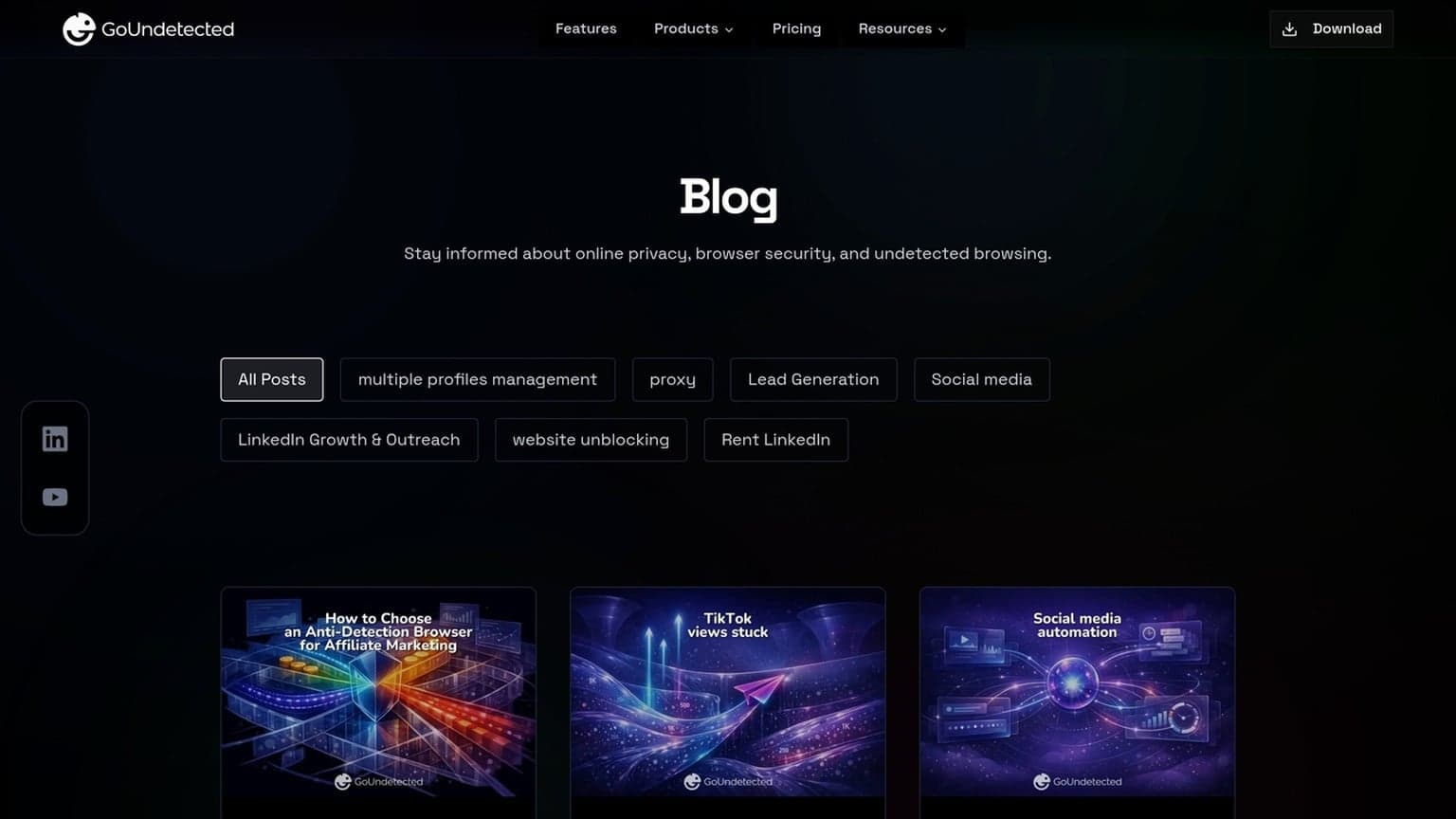
Need more hands-on playbooks? Read How to Choose an Anti-Detection Browser for Affiliate Marketing: Tracking, Offer Testing, and Account Separation, TikTok views stuck, and Social media automation.
Browse Undetected. Stay Private.
Unique browser fingerprints, built-in proxy support, and anti-detection technology. Try GoUndetected free for 7 days.
Available for macOS and Windows · No credit card required