
Manage Multiple Chrome Profiles Easily: A Guide
Discover how using multiple Chrome profiles can enhance your browsing experience, allowing personalized settings, bookmarks, and seamless profile switching for work and personal use.

Multiple Chrome Profiles and Browsers Management
Managing multiple Chrome profiles can greatly enhance your browsing experience. It allows you to separate work and personal activities. Each profile can have its own settings, bookmarks, and history.
Switching between profiles is seamless and doesn't require logging out. This feature is perfect for those who juggle multiple Google accounts. It also helps in maintaining privacy and organization.
Creating and managing Chrome profiles is straightforward. You can easily add new profiles and customize them. This guide will walk you through the process step-by-step.
Chrome profiles are not just for desktops. Android users can also benefit from this feature. Managing profiles on mobile devices is just as simple.
Whether for work, family, or personal use, Chrome profiles offer flexibility. They help you stay organized and efficient. Let's explore how to make the most of this powerful tool.
What Are Chrome Profiles and Why Use Them?
Chrome profiles allow users to create separate browsing environments. Each profile has its own settings, such as bookmarks and passwords. This separation enhances privacy and organization for multi-user devices.
Using Chrome profiles can streamline your browsing tasks. Imagine managing work and personal accounts with ease. There's no need to juggle different browsers or tabs anymore.
Profiles are also perfect for users sharing a device with others. Families can each have their own space without interfering with each other's preferences. This makes shared devices more personal and efficient.
Benefits of Chrome Profiles:
- Separate bookmarks and settings
- Enhanced privacy
- Simplified account management
- Custom themes and avatars
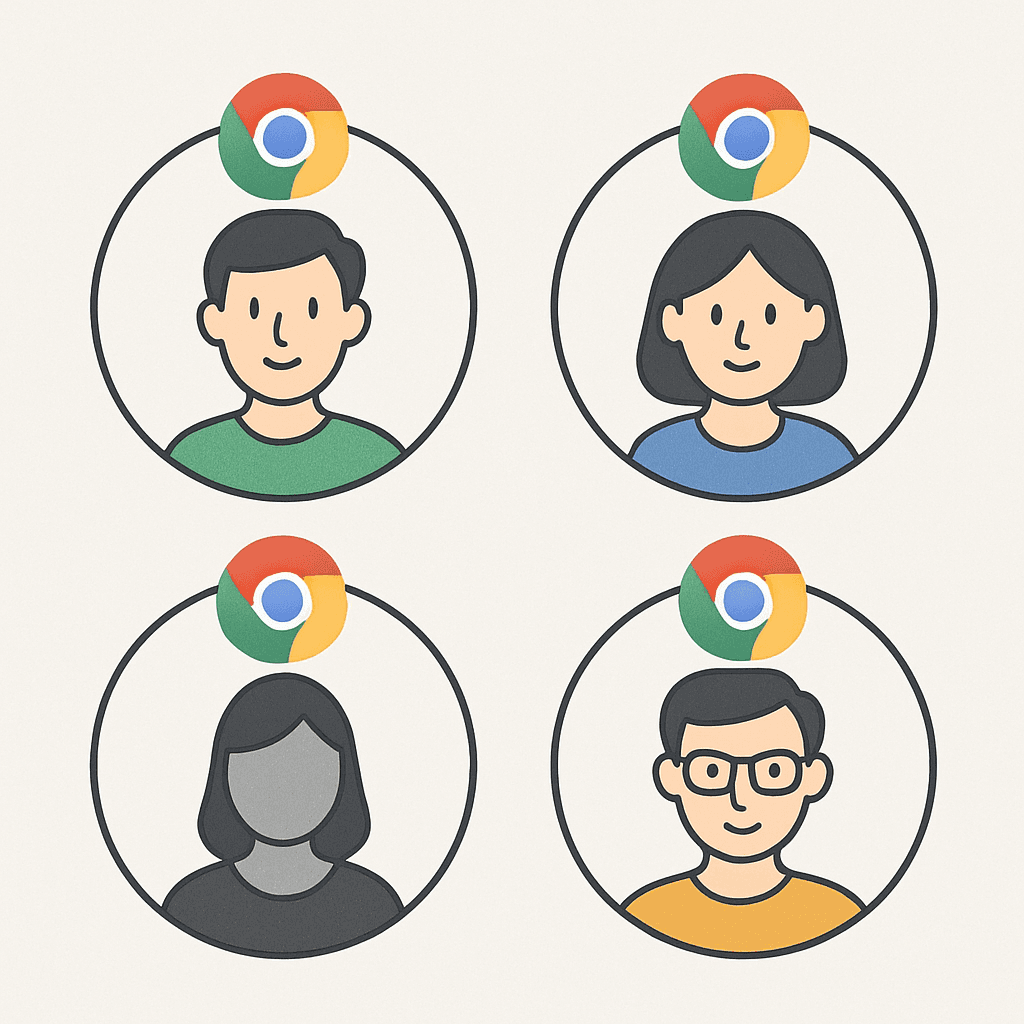
In short, Chrome profiles are essential for those who need distinct browsing setups. They provide a seamless way to manage multiple user identities on one device.
How to Create Chrome Profiles on Desktop
Creating Chrome profiles on a desktop is a straightforward task. Start by opening your Chrome browser. Look for the profile icon in the top-right corner.
Clicking this icon reveals the current user's profile. Then, select "Add" from the menu to create a new profile. This action opens a new setup window.
Next, you'll be prompted to choose a name for your profile. Customize it further with a unique theme or avatar. These preferences make each profile easily identifiable.
Steps to Create a Chrome Profile:
- Open Chrome and click the profile icon.
- Select "Add" to start the setup.
- Enter a name, pick a theme or avatar.
- Save your settings to use the new profile.
Once you finish setting up, you can immediately start browsing with the new profile. This process makes it easy to have distinct user environments.
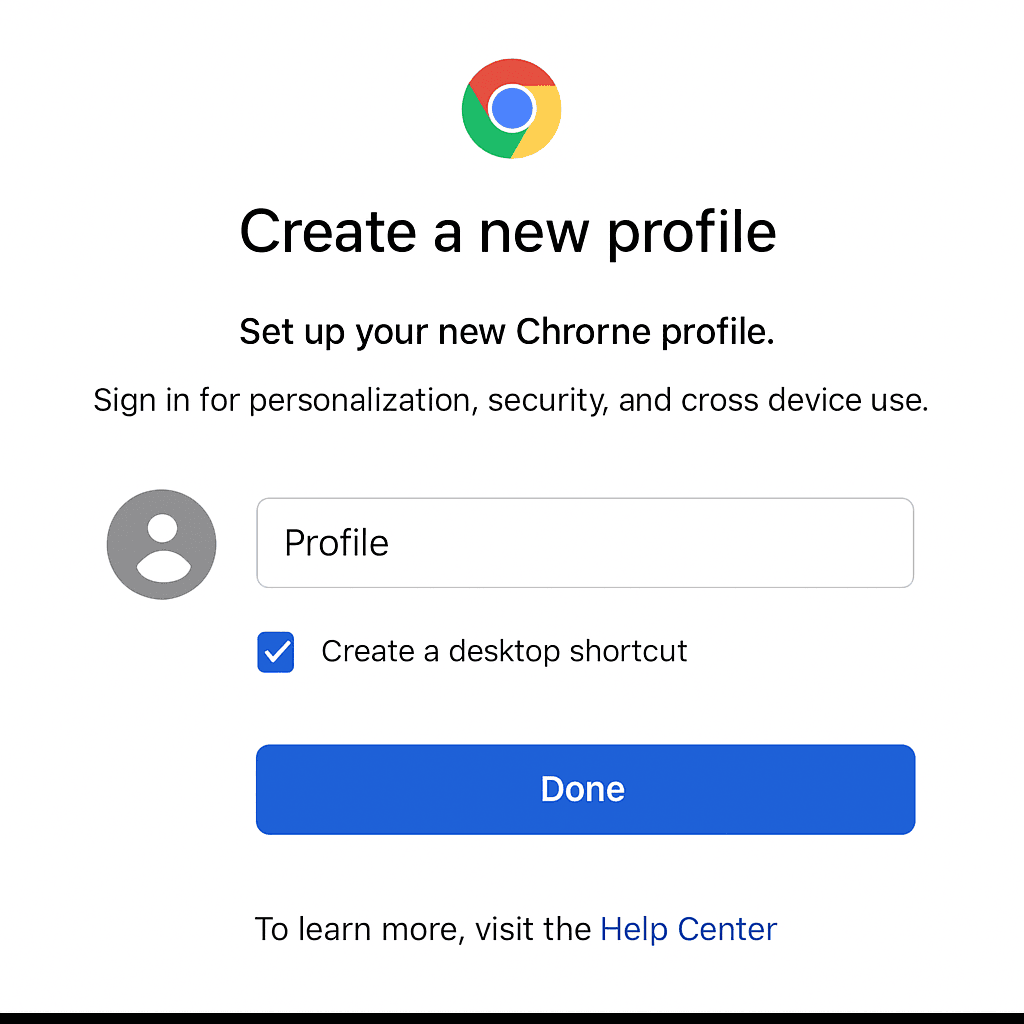
Now, explore various online tasks using separate Chrome multiple profiles. Each will have its own settings, ensuring a seamless experience.
There are also a tools such as https://goundetected.io, that are letting you to create a separate profiles quickly and manage them easily, you might explore it as well, depending on your case.
Managing and Switching Between Multiple Chrome Profiles
Managing Chrome profiles is essential for organized browsing. Begin by clicking the profile icon again. This action displays a list of all available profiles.
Switching between profiles is simple. Just select the desired profile from the list. Chrome will open a new window with that profile's settings and data.
Managing profiles goes beyond switching. You can edit, rename, or even delete them as needed. These options help maintain a clutter-free browsing environment.
Tips for Managing Chrome Profiles:
- Rename profiles for easy identification.
- Keep only necessary profiles to avoid confusion.
- Regularly review and update profile settings.
- Delete unused profiles to optimize performance.
Efficient profile management enhances privacy. Browsing history and settings remain distinct, providing a tailored user experience. This feature suits both personal and professional uses.
Chrome Profile Management on Android Devices
Managing multiple Chrome profiles on Android devices is straightforward. Chrome for Android supports multiple user profiles, allowing similar flexibility to desktop usage. To access this feature, open the Chrome app and tap on the profile icon.
Once you tap the icon, select "Add" or "Manage People" from the menu. This action lets you create or switch profiles. Each profile can have its unique settings, bookmarks, and browsing history.
Steps for Managing Profiles on Android:
- Tap the profile icon in the Chrome app.
- Select "Add" to create a new profile.
- Choose the desired profile to switch.
Using multiple profiles on Android keeps your work and personal browsing separate. It also helps manage different Google accounts with ease. Additionally, you can sync profiles with desktop versions for a seamless experience across devices.
Syncing Data and Customizing Each Profile
Syncing data across your devices ensures your Chrome profiles are up-to-date everywhere. When you sign in with your Google account, Chrome syncs bookmarks, history, passwords, and settings. This feature simplifies managing multiple profiles on different devices.
Customizing each Chrome profile makes identification easy and enhances the user experience. You can personalize profiles with unique themes and avatars. This not only adds a personal touch but also helps differentiate between profiles at a glance.
Ways to Customize Your Chrome Profiles:
- Add a custom theme for each profile.
- Select unique avatars to represent profiles.
- Adjust settings to match profile-specific needs
You can choose which data to sync, maintaining privacy while ensuring convenience. Personalization of profiles ensures each user remains organized and efficient. It's a simple way to enhance your productivity through customization.
Use Cases: Work, Family, and More
Chrome profiles cater to diverse user needs. They provide a seamless way to separate work from personal activities. This feature is particularly beneficial for freelancers, professionals, and students managing different responsibilities.
Families sharing a device can benefit significantly from Chrome profiles. Each family member can create a distinct profile, ensuring individual browsing data remains private. Profiles help parents manage settings for children's online safety through parental controls.
Common Use Cases for Chrome Profiles:
- Separate work and personal accounts
- Manage family member profiles on shared devices
- Differentiate between educational and recreational browsing
Moreover, Chrome profiles support hobbyists and researchers. They allow easy organization of various projects. This feature is valuable for anyone juggling multiple areas of interest, such as hobbies or study fields.
Tips for Effective Chrome Profile Management
Managing multiple Chrome profiles can streamline your online activities when done efficiently. By following a few tips, you can enhance this management process and make daily browsing more productive.
Start by customizing each profile with distinct themes or avatars. This easy step helps in quickly identifying the profile in use. Make sure to set specific bookmarks and startup pages tailored to each profile’s purpose.
Key Tips for Management:
- Use unique avatars for easy identification
- Set personalized themes for profiles
- Customize bookmarks and startup pages
Regularly review and update passwords, especially for work-related profiles. This practice ensures security across your Chrome profiles and safeguards sensitive information.
Frequently Asked Questions About Multiple Chrome Profiles
Conclusion
Managing multiple Chrome profiles offers users flexibility and organization. Whether for work or personal use, profiles streamline online activities. They help separate tasks, accounts, and data effectively. With easy setup and switching, managing these profiles becomes a hassle-free experience. Embrace the power of Chrome profiles to enhance productivity and privacy in your digital life.
Browse Undetected. Stay Private.
Unique browser fingerprints, built-in proxy support, and anti-detection technology. Try GoUndetected free for 7 days.
Available for macOS and Windows · No credit card required