
Manage multiple Google accounts
Learn how to manage multiple Google accounts without confusion, security risks, or workflow slowdowns. Discover browser profile strategies, separation tips, and a better way to stay organized.

If you need to manage multiple Google accounts without constantly signing out, mixing up inboxes, or triggering security checks, you’re not alone. Marketers, creators, agencies, founders, and support teams all run into the same problem: Google makes it easy to add accounts, but not always easy to keep them cleanly separated. The result is often confusion, cross-account mistakes, and in some cases unnecessary risk from browser fingerprint linking or shared device signals.
There are several legitimate ways to handle multiple Google accounts on one device, and the right choice depends on how many accounts you use, how sensitive they are, and whether you need simple convenience or true account isolation. For some people, Chrome profiles and the built-in Google account switcher are enough. For others, especially those managing client work, business operations, or multiple Gmail accounts at scale, a multi-accounting browser with proxy support can provide a much more controlled setup.
In this guide, we’ll break down every practical method, compare their strengths and limitations, and show you when basic Google account management is sufficient versus when you should consider a more advanced workflow. We’ll also cover setup steps, compliance considerations, and the risks that come with trying to manage Google accounts on one device without proper separation.
Multi-Account Basics
Managing multiple accounts is less about volume and more about control. Whether you run client profiles, marketplace stores, ad accounts, or social channels, the goal is to keep each identity stable, separated, and easy to operate without triggering platform checks.
Why it matters
Platforms increasingly look for patterns that suggest one person is controlling many accounts. If your sessions, device signals, cookies, or IP behavior overlap too much, you can see logins challenged, accounts restricted, or entire workflows slowed down. That risk grows fast when teams scale manually.
Strong multi-account basics help you protect revenue, reduce downtime, and keep operations predictable. In practice, that means each account should behave like a distinct user environment, with its own browser profile, proxy, and routine.
Common risks
The biggest issues usually come from accidental overlap, not intentional abuse. Shared fingerprints, reused credentials, and inconsistent network settings can create links between accounts even when the content looks different.
- Cookie and session contamination between profiles
- IP address reuse across unrelated accounts
- Browser fingerprint mismatch or instability
- Team access mistakes and poor permission control
For a deeper view of browser fingerprinting, see the MDN glossary entry on fingerprinting. The practical takeaway is simple: if platforms can correlate signals, they can correlate accounts.
Core setup
A reliable setup starts with clean separation. Each account should live in its own browser profile, use a dedicated proxy, and follow a consistent login pattern. That reduces cross-account leakage and makes troubleshooting much easier.
| Setup element | Purpose | What to avoid |
|---|---|---|
| Browser profile | Isolates cookies, cache, and local storage | Reusing the same profile for multiple accounts |
| Proxy | Separates network identity | Switching IPs randomly mid-session |
| Workflow rules | Keeps behavior consistent | Logging in from different devices without a plan |
Start with a simple operating rule set: one profile per account, one proxy per profile, and one owner or team process per workflow. If you want a more structured approach, GoUndetected.io is built to help teams keep those boundaries clean without adding unnecessary friction.
Google Account Separation
Keeping Google accounts separated is one of the simplest ways to reduce cross-linking signals when you manage multiple identities. In practice, that means treating each account as its own environment: different login sessions, different browser profiles, and different sync settings. Done well, this lowers the chance that activity from one account leaks into another through cookies, autofill, or shared browser data.
Separate logins
Use a distinct login session for each Google account and avoid switching accounts in the same browser profile. Google’s own account switching is convenient, but it is not designed for strict identity isolation. For multi-account workflows, the safer approach is to keep each account in a separate, persistent browser environment so session data never overlaps.
A practical setup looks like this:
- One browser profile per Google account
- Dedicated bookmarks, cookies, and history per profile
- No shared password manager autofill across accounts
- Unique proxy/IP assignment where account separation matters
Profile isolation
Profile isolation prevents browser fingerprints, extensions, and local storage from becoming shared identifiers. If two accounts are opened in the same profile, even briefly, the browser can retain traces that make separation less effective. This is especially important for teams handling ads, client channels, or multiple brand inboxes.
GoUndetected.io helps here by letting you build isolated profiles that behave like independent devices. That means each Google account can stay tied to its own environment, reducing accidental overlap and making daily account management easier to scale.
Sync control
Chrome sync can quietly undermine separation by pulling bookmarks, passwords, extensions, and browsing data across accounts. If you need clean boundaries, keep sync off unless a profile is meant to share state. For Google Workspace or personal accounts, review what is actually being synchronized before you connect a profile.
| Setting | Recommended for separation | Why it matters |
|---|---|---|
| Chrome Sync | Off | Prevents shared data from spreading between accounts |
| Autofill | Per profile only | Reduces accidental credential crossover |
| Extensions | Minimal and isolated | Extensions can expose shared tracking signals |
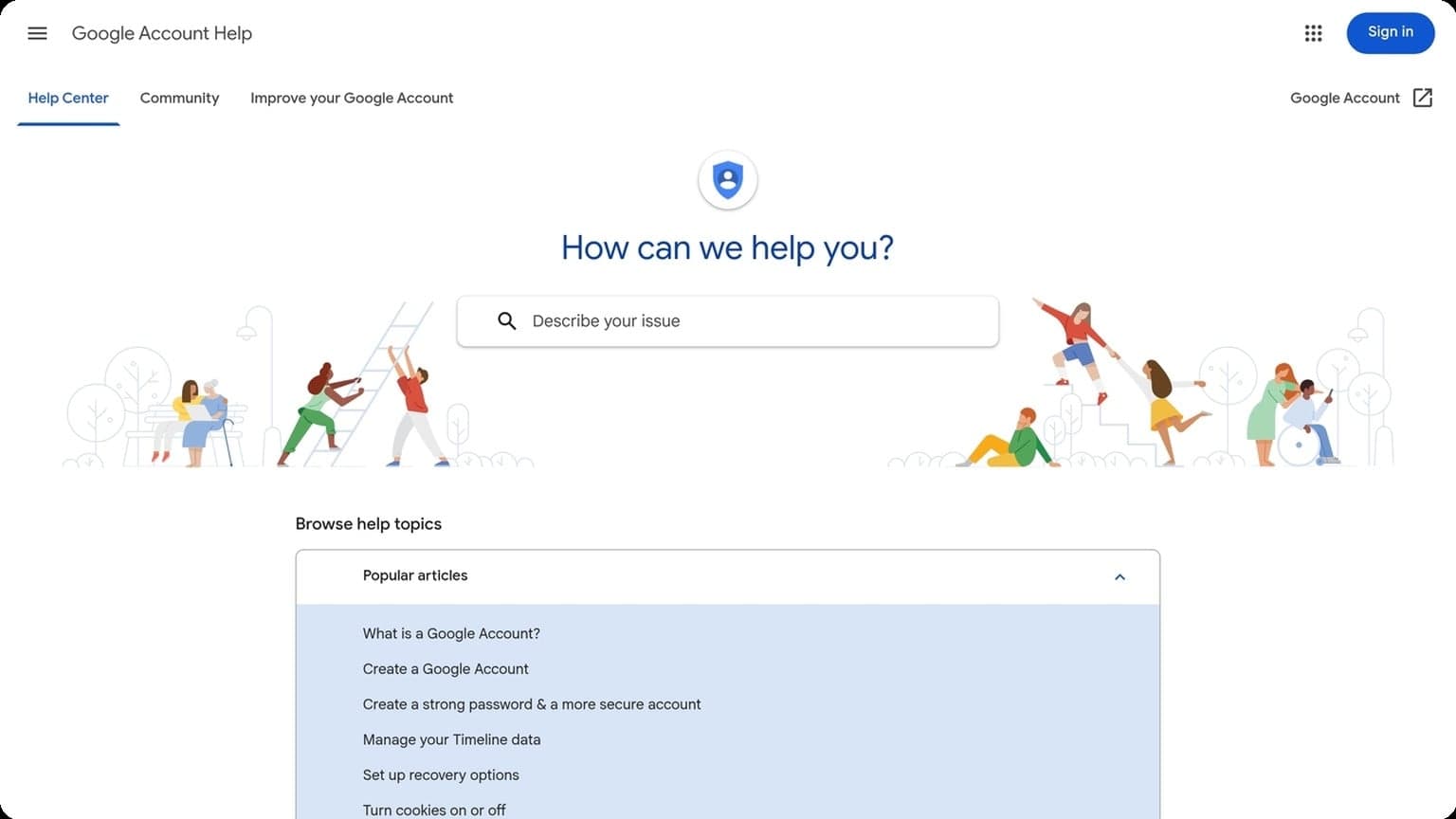
For official guidance on Google account controls, see the Google Account Help Center.
Browser Profile Setup
A clean browser profile structure is the foundation of reliable multi-account management. If profiles are inconsistent, you create unnecessary overlap between sessions, which can make routine work harder and increase the chance of mistakes. The goal here is simple: build each profile as a distinct, well-documented environment from the start.
Create profiles
Start by creating one profile per account, brand, or workflow. This keeps cookies, local storage, extensions, and browser fingerprints separated, so one session does not bleed into another. For teams managing marketplaces, social accounts, or ad profiles, that separation is the difference between organized scaling and constant cleanup.
Use a repeatable setup process so every new profile follows the same baseline. A consistent structure makes it easier to audit changes later and reduces the risk of accidental cross-login.
- One profile = one account or client
- Match the profile to the intended task
- Keep the setup identical unless a use case truly requires a change
Name clearly
Clear naming is a small habit that saves time every day. Instead of generic labels like “Profile 1” or “Test,” use names that instantly tell you what the profile is for, who owns it, and where it belongs in your workflow. That matters most when you manage dozens of sessions and need to switch quickly without hesitation.
A practical naming format should be readable at a glance and consistent across your team. For example, combine account type, platform, region, and purpose so you can search and sort with confidence.
| Bad name | Better name | Why it works |
|---|---|---|
| Profile 7 | IG_US_ClientA | Shows platform, region, and owner |
| Test | Shopify_UK_Support | Clarifies use case immediately |
Add details
Once the profile exists, add operational details that make management easier over time. Store notes on proxy assignment, login owner, recovery email, and any special settings you applied. If you need a refresher on browser isolation concepts, see the GoUndetected resources for workflow guidance.
At minimum, document the following:
- Primary account or client name
- Assigned proxy or location
- Purpose of the profile
- Last update or activity date
This level of detail makes handoffs smoother, helps spot anomalies faster, and reduces the chance of using the wrong profile for the wrong task.
Security Best Practices
Account security is the foundation of safe multi-account management. Even the best browser isolation strategy can be undermined by weak credentials or poor recovery settings, so it pays to harden every login before scaling.
Strong Passwords
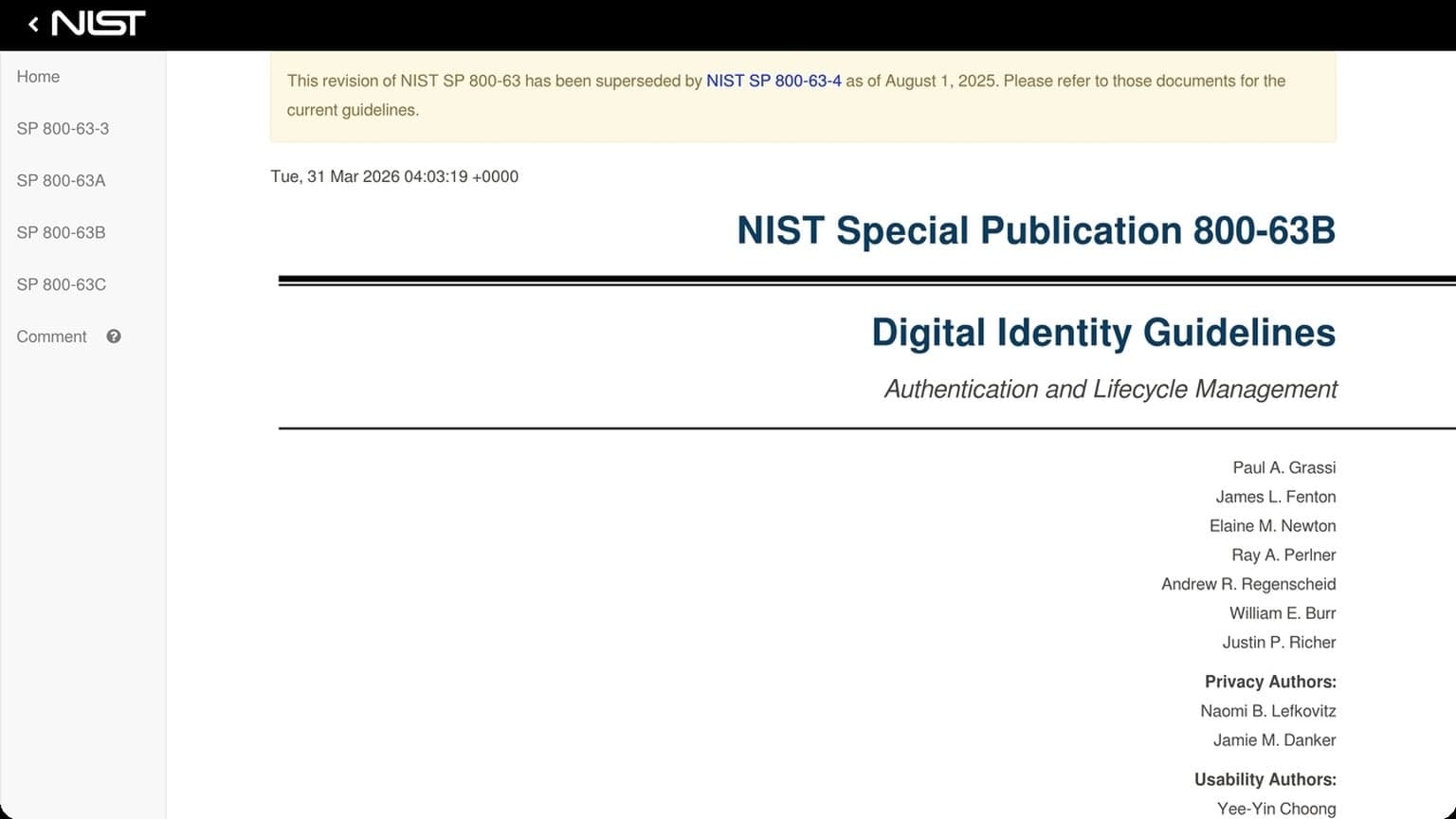
Use a unique, long password for every account. Industry guidance from sources like the NIST digital identity guidelines consistently favors length and uniqueness over complexity tricks that people tend to reuse or forget.
A practical password policy should be simple to follow and hard to guess:
- Use 14+ characters whenever possible.
- Never reuse passwords across accounts.
- Store credentials in a reputable password manager.
- Avoid personal details, patterns, or keyboard sequences.
2FA Use
Two-factor authentication adds a second barrier even if a password is exposed. For multi-account workflows, this is especially important because credential leaks, phishing, and session theft are common failure points.
Prefer authenticator apps or hardware security keys over SMS when the platform supports them. Google’s 2-Step Verification help center and similar platform docs usually recommend stronger methods for higher-risk accounts.
| 2FA Method | Security | Best Use |
|---|---|---|
| Authenticator app | High | Most business and creator accounts |
| Hardware key | Very high | High-value or admin accounts |
| SMS | Moderate | Backup only, if nothing else is available |
Recovery Options
Recovery settings are often overlooked until an account is locked. Set them up early, verify them regularly, and make sure they point to channels you actually control.
Good recovery hygiene includes:
- Using a current backup email address.
- Adding a trusted phone number where appropriate.
- Saving backup codes offline in a secure place.
- Reviewing recovery details after any team or device change.
Workflow Efficiency
Workflow efficiency is what separates a manageable multi-account setup from a daily bottleneck. When you spend less time switching contexts, hunting for assets, or rebuilding the same browser state, you can focus on the work that actually moves metrics.
Switch fast
Fast switching matters because every extra step adds friction and increases the chance of mistakes. In multi-account operations, that can mean opening the wrong profile, mixing cookies, or wasting time re-authenticating. A stable antidetect workflow should let you move between identities in seconds, not minutes.
Build a simple switching routine and keep it consistent across tasks. For example, group accounts by client, channel, or campaign stage so you always know where to go next. If you want a deeper look at profile handling, see GoUndetected.io for workflow-friendly browser management.
Organize tabs
Tab sprawl is one of the fastest ways to lose efficiency. The more profiles and dashboards you run, the more important it becomes to keep each workspace clean and predictable. A good structure reduces misclicks and helps you spot what needs attention at a glance.
Use a repeatable layout for every session:
- one tab for the account dashboard
- one tab for messaging or support
- one tab for reporting or analytics
- one tab for notes, assets, or SOPs
| Tab setup | Best for | Efficiency gain |
|---|---|---|
| Grouped by client | Agencies | Faster context switching |
| Grouped by channel | Solo operators | Cleaner task focus |
| Grouped by stage | Large teams | Less duplication |
Use shortcuts
Keyboard shortcuts are a small habit with a big payoff. Opening profiles, duplicating actions, and moving between tabs from the keyboard removes dozens of micro-delays over the course of a day. That time adds up quickly when you manage multiple accounts at scale.
Document your most-used actions and train yourself to use them until they become automatic. For browser-side best practices, official Chrome help is a useful reference: Google Chrome Help. The goal is simple: fewer clicks, fewer errors, and a smoother workflow from start to finish.
GoUndetected Advantage
GoUndetected gives teams the practical control needed to manage multiple identities without turning operations into a compliance or security headache. The platform is built for users who need consistent browser fingerprints, cleaner session separation, and a workflow that scales from a few accounts to a full multi-user setup.
Stealth features
Anti-detect performance starts with reducing the signals that websites use to link accounts. GoUndetected helps isolate browser profiles, keep cookies and local storage separated, and support more stable fingerprint management across sessions. That matters when account integrity depends on avoiding cross-contamination between logins, devices, and workflows.
For operators comparing solutions, the value is not just hiding activity, but making it repeatable. A dependable anti-detect setup should support consistent profile behavior, proxy pairing, and controlled browser environments so each account looks and acts like a distinct user.
| Capability | Why it matters | GoUndetected advantage |
|---|---|---|
| Profile isolation | Prevents account overlap | Cleaner separation across identities |
| Fingerprint control | Reduces detection risk | More consistent browser signals |
| Session management | Supports repeatable workflows | Less manual reconfiguration |
Team use
Multi-account operations work best when everyone follows the same process. GoUndetected is designed to help teams share access without sharing risk, so managers can assign profiles, standardize settings, and keep work organized across roles. That makes onboarding faster and reduces the chance of mistakes that expose accounts.
If your workflow includes client work, affiliate management, e-commerce, or ad operations, team visibility becomes a real advantage. Shared structure means fewer duplicated profiles, fewer logging errors, and a cleaner audit trail when you need to review who handled what.
Scalable control
As account volume grows, manual browser management becomes the bottleneck. GoUndetected supports scalable control by keeping profiles organized and easier to replicate, which helps teams expand without rebuilding every setup from scratch. That is especially useful when account creation, warm-up, and daily access all need to stay consistent.
The result is a workflow that stays manageable as complexity increases. Instead of patching together ad hoc browser setups, you get a system built for repeatable operations, faster delegation, and cleaner control over large account portfolios.
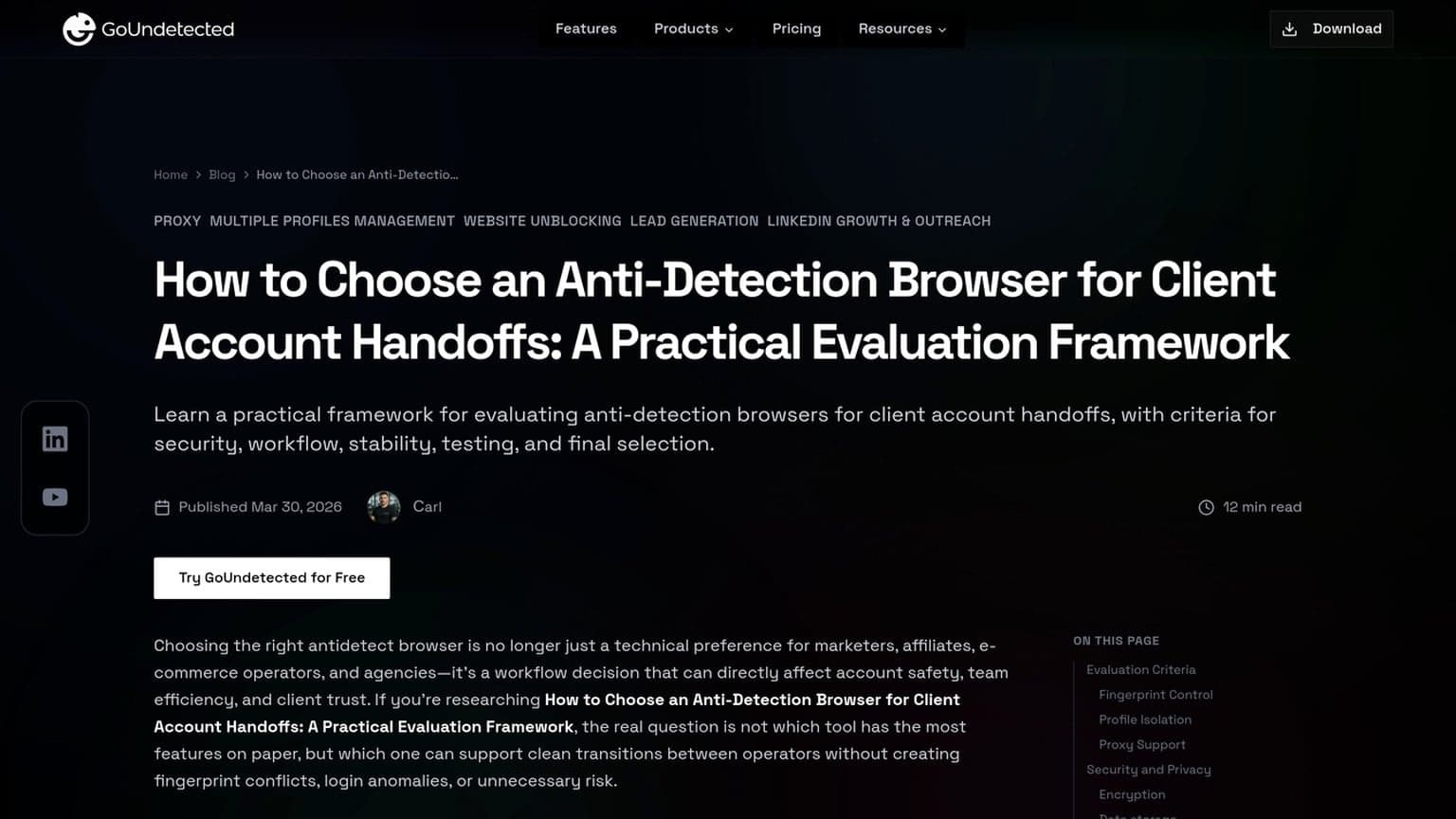
Need more hands-on playbooks? Read How to Choose an Anti-Detection Browser for Client Account Handoffs: A Practical Evaluation Framework, How to recover a flagged profile after a browser fingerprint mismatch, and How to recover a flagged account without linking it to your other profiles.
Browse Undetected. Stay Private.
Unique browser fingerprints, built-in proxy support, and anti-detection technology. Try GoUndetected free for 7 days.
Available for macOS and Windows · No credit card required