
Manage multiple social media accounts safely
Use isolated browser profiles, dedicated residential or mobile proxies, and human-like automation to prevent account linking and bans.

How to Manage Multiple Social Media Accounts Safely
Managing multiple social media accounts can be risky. Platforms use advanced detection systems like IP tracking and browser fingerprinting to link accounts. If one account is flagged, others connected to it could face bans. To avoid this, here's what you need to know:
- Detection Risks: Platforms monitor IP addresses, browser details, and behavior patterns to identify linked accounts.
- Key Tools: Use anti-detection browsers to separate account profiles, and residential or mobile proxies to mask your IP.
- Avoiding Bans: Stick to one account per browser profile, align proxy locations with account regions, and gradually increase activity on new accounts.
- Automation Tips: Mimic human behavior by randomizing actions, varying posting times, and avoiding repetitive patterns.
Staying secure requires isolating accounts, using the right tools, and maintaining consistent, natural behavior. Follow these steps to protect your accounts and manage them efficiently.
How Platforms Detect Multiple Accounts
Platforms use a variety of data points to identify multiple accounts - ranging from your IP address and screen resolution to the fonts installed on your device. When these details match across different accounts, platforms can link them to the same user and impose restrictions.
Detection operates on three primary layers: tracking IP addresses and network gateways, analyzing browser characteristics (like graphics rendering details) to create digital fingerprints, and observing behavioral patterns, such as frequent account switching. This layered approach is powered by extensive data collection, which we’ll explore further.
Here’s a startling fact: over 56% of companies have faced social media hacking at least once, and corporate account takeover attempts happen an average of 30 times annually for each institution. These alarming statistics push platforms to continuously improve their detection systems, though these measures sometimes unintentionally impact legitimate users managing multiple accounts.
What Browser Fingerprinting Is and How It Works
Browser fingerprinting creates a unique digital profile by gathering details like your screen resolution, installed fonts, browser version, operating system, GPU/CPU specs, and Canvas/WebGL rendering data. Together, these elements form a fingerprint that’s nearly impossible to duplicate - even if you clear cookies or use private browsing.
This shift from cookies to fingerprinting represents a major evolution in detection strategies. While cookies are direct markers that users can easily delete, fingerprinting relies on indirect clues about your hardware and software setup, often collected without explicit consent. Platforms also use LocalStorage and sessionStorage to track preferences and session tokens, linking accounts that share the same browser data. These advanced techniques explain why even minor inconsistencies can lead to account bans.
What Triggers Account Bans and Restrictions
Accounts are flagged when platforms detect automation or violations of their policies. One common red flag is IP linkage - if multiple accounts log in from the same network, platforms often assume they belong to one user and may issue bans. Geographic inconsistencies also raise suspicion; for example, if your account appears to jump from New York to Tokyo in a matter of minutes, it’s likely to be flagged.
Other triggers include rapid account switching or performing a high volume of actions immediately after account creation. Platforms also watch for session contamination - when accounts share cookies or browser data, they’re quickly linked. Technical mismatches, such as conflicting time zones, unrecognized device signatures, or inconsistent user-agent strings, can result in instant restrictions. Additionally, attempting large-scale activity from a single IP address often leads to failure rates above 95%, whereas using properly isolated setups can achieve success rates exceeding 99%.
How to Set Up Anti-Detection Browsers
Setting up anti-detection browsers is a key step in managing multiple accounts without tipping off platform detection systems. These browsers create isolated environments where each account operates independently, with separate cookies, cache, and digital fingerprints. When configured properly, they work hand-in-hand with proxies and behavioral strategies to keep your accounts secure.
The process hinges on two main tasks: creating distinct browser profiles for each account and ensuring that data remains fully separated between profiles. Let’s break it down.
How to Create Separate Browser Profiles
Start by using an operating system setup that closely mimics your actual system. This helps avoid any mismatch flags that platforms might detect.
Here are the essentials for creating a convincing profile:
- Adjust key settings to simulate a standard user environment. For example, set the CPU cores to a typical number, allocate 8 GB of RAM, and match the screen resolution to the emulated device.
- Assign each profile to its own dedicated proxy. Make sure the timezone and geolocation align with the proxy’s location (e.g., a New York proxy should reflect Eastern Time and New York City coordinates).
- Before logging in, check the profile’s proxy and fingerprint using tools like 2ip or Pixelscan. This ensures everything is configured correctly.
- If you’re working with pre-existing accounts, import cookies in JSON or Netscape formats. This lets you maintain session continuity without needing to log in again.
Once your profiles are set up, the next step is to ensure that data stays strictly separated.
How to Keep Data Separate Between Profiles
The golden rule is simple: one account per profile. This prevents any chance of data leakage or cross-contamination, where shared cookies or session data could link your accounts.
To make things even clearer, use visual cues like different themes, avatars, or color-coded tabs for each profile. This helps you instantly identify which account you’re working on and reduces the risk of accidental mix-ups.
"Each profile works like a different computer. Cookies, history, and logins stay inside that profile, so accounts never cross."
– Gayane G., Content Creator, Multilogin
For teams managing multiple accounts, consider sharing encrypted cloud profiles instead of raw passwords. This method ensures security while allowing team members to access the same accounts without disrupting session data. Whether you’re working solo or with a team, the isolation of each profile ensures that your accounts remain separated and secure.
How to Use Proxies to Mask Your Location and IP
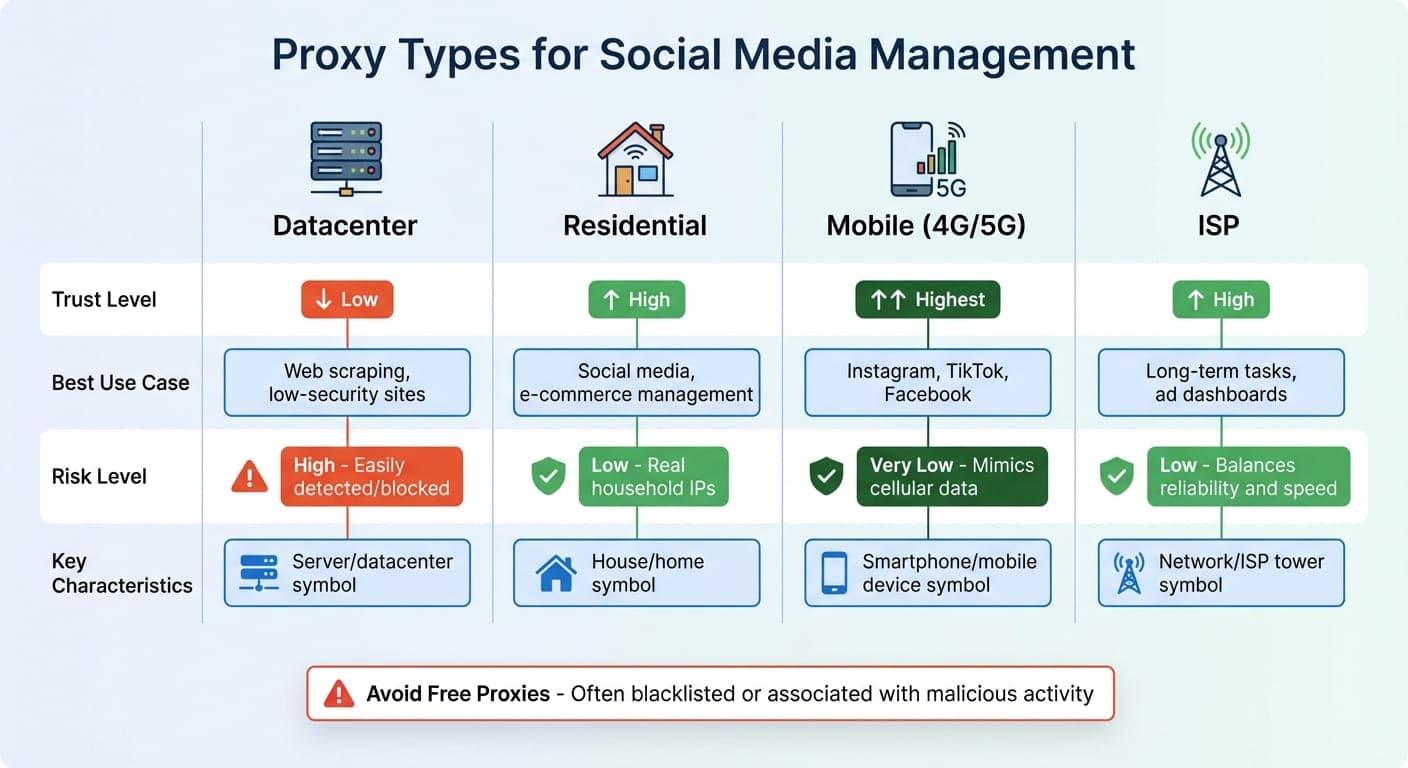
Social Media Proxy Types Comparison: Trust Levels and Use Cases
Proxies act as a go-between for your device and the internet. When you connect through a proxy, social media platforms see the proxy’s IP address instead of your own. This separation is crucial for managing multiple accounts without linking them together.
Assign a unique proxy to each account and avoid reusing them. This ensures each profile has its own distinct digital identity. For instance, if you have one account registered in New York and another in Los Angeles, using proxies based in those cities makes the accounts appear independent.
While proxies hide your IP address, they’re most effective when paired with anti-detection browsers that mask your hardware fingerprint. Together, they create an isolated environment for each account. It’s also important to align the proxy location with the account’s registration details. For example, if your account was set up in Miami, using a Miami-based proxy helps avoid suspicion. Premium residential proxy networks offer access to millions of unique IP addresses globally, allowing you to match each account’s location with ease.
Types of Proxies and When to Use Them
Not all proxies are the same, and the type you choose can determine how platforms perceive your accounts and whether they’re flagged.
- Residential proxies: These use IP addresses from real households, making them appear as genuine home internet connections. They’re perfect for daily tasks like posting, messaging, and running ads since platforms trust ISP-assigned IPs.
- Mobile proxies: Routing traffic through cellular (4G/5G) networks, these mimic typical smartphone usage. They’re especially effective for platforms with a mobile-first audience.
- SOCKS5 proxies: These handle both TCP and UDP traffic, offering better anonymity and flexibility for high-performance automation. However, they require more technical setup.
- Datacenter proxies: While fast and affordable, these are more easily detected and blocked by social media platforms. They’re better suited for basic tasks like web scraping but aren’t reliable for managing accounts.
Proxy Type | Trust Level | Best Use Case | Risk Level |
|---|---|---|---|
Datacenter | Low | Web scraping, low-security sites | High (Easily detected/blocked) |
Residential | High | Social media, e-commerce management | Low (Real household IPs) |
Mobile (4G/5G) | Highest | Instagram, TikTok, Facebook | Very Low (Mimics cellular data) |
For long-term tasks like managing ad dashboards, ISP proxies are a solid choice. They balance the reliability of residential proxies with the speed of datacenter proxies.
Avoid free proxies at all costs. These are often blacklisted or associated with malicious activity, which could lead to your accounts being flagged or banned.
Once you’ve selected the right proxy, follow these steps to integrate it with your anti-detection browser.
How to Connect Proxies to Your Anti-Detection Browser
- Gather your proxy details: Collect the IP address, port number, username, and password from your proxy provider.
- Set up a new browser profile: Open your anti-detection browser and create a new profile. Go to the proxy settings within the profile and input the proxy details, ensuring you select the correct protocol (HTTP/HTTPS or SOCKS5). Adjust the timezone and geolocation settings to match your proxy’s location (e.g., Central Time for a Chicago-based proxy).
- Verify the connection: Use tools like ipinfo.io or ipleak.net to confirm your proxy is active and displaying the correct location. This ensures your real IP address stays hidden.
- Enable sticky sessions: If your proxy supports it, activate "sticky" IP settings. These maintain the same IP address for a set period (usually 5–30 minutes), simulating a continuous session.
- Disable WebRTC: Turn off WebRTC in your browser settings to prevent accidental IP leaks. Even if your anti-detection browser has built-in WebRTC leak protection, double-check for each profile.
- Start the session: Save your profile and launch the session. The browser will route all traffic through the proxy. Repeat this process for each account.
How to Avoid Getting Your Accounts Banned
Your online behavior plays a big role in keeping your accounts safe from bans. Platforms closely monitor things like your IP address and interaction patterns, and even one wrong move could lead to warnings or permanent bans.
Some mistakes are easier to sidestep once you know what platforms are watching for. For instance, avoid using datacenter proxies with high-value accounts - they're often flagged. Don’t rush into high-volume activities right after creating an account. Stick to using one residential IP per account to prevent linking multiple accounts together. Also, keep your browser settings consistent across sessions to reduce detection risks.
"Platforms don't just ban IPs; they ban suspicious behavior patterns. Your operational security - how you use the proxy - is the single most significant factor in avoiding account suspension." - OnlineProxy.io
To minimize risks, isolate each account’s digital footprint. Use high-trust residential or mobile proxies, with one proxy assigned to each account. Opt for sticky sessions to keep the same IP address during daily use. Gradually increase your activity over time, rather than diving into heavy usage on day one. Mimicking how a real user would behave is key.
How to Monitor Your Accounts for Warning Signs
Once you've adjusted your behavior, it’s important to keep an eye out for early warning signs that might suggest trouble. For example, if your automated tasks or data retrieval success rates drop below 5%, it could mean your IP has been flagged. Another red flag is getting stuck in endless CAPTCHA loops, which often signals that your connection appears suspicious.
Rate limit errors, like seeing "Too Many Requests" on platforms such as Twitter, indicate you're exceeding acceptable activity thresholds. Shadowbans can be trickier to spot but typically show up as a sudden drop in engagement or reach without any formal notice.
Repeated login challenges, like SMS or email verifications, are another warning sign that your connection might be flagged as risky. Before accessing a platform, double-check that your proxy is active and showing the correct location using tools like ipinfo.io.
When creating a new account, ease into things. For the first 72 hours, keep activity light - fill out your profile, add a few likes, and leave some replies. Avoid mass-posting or reusing identical content during this period. A slow and steady start helps establish trust with the platform.
How to Use Automation Tools While Mimicking Human Behavior
Automation can be a helpful tool, but it needs to look natural to avoid detection. Throttle your requests, randomize how you engage (likes, comments, etc.), and vary your posting times. Avoid using the same creatives or captions across multiple profiles, as this can link accounts together.
For a more human-like touch, use Robotic Process Automation (RPA) tools that simulate real clicks and mouse movements instead of relying solely on API-based automation. These tools make your activity harder for platforms to flag. If you're handling high-volume tasks like scraping data, distribute requests across rotating proxy pools to avoid overloading a single IP.
"Automation without humanized behavior will get you flagged regardless of your browser." - Joanna Ok., Content Writer and Marketing Strategist, Multilogin
SOCKS5 proxies are particularly useful for automation since they work at a lower network level and handle different types of traffic more efficiently than standard HTTP proxies. Combine them with sticky residential proxies for stable daily logins, and use rotating IPs for tasks that require heavier traffic.
Finally, consistency is crucial. Never change your browser fingerprint mid-session. Keep your time zone, user agent, and other settings consistent throughout each session. Large-scale operations from a single IP often result in poor success rates - sometimes below 5%. By using rotating residential proxies, you can improve those rates to over 99%.
Conclusion
Main Strategies for Managing Multiple Accounts Safely
To manage multiple accounts securely, combining anti-detection browsers with unique proxies is essential. Anti-detection browsers allow you to create isolated profiles, each with its own cookies, cache, and browser fingerprints, ensuring your digital identities remain separate. When you pair these profiles with dedicated residential or mobile proxies, you prevent platforms from linking accounts through shared IP addresses. This isolation is the cornerstone of safe multi-account management.
Equally important is automation that mimics natural user behavior. By throttling requests, randomizing interactions, avoiding repetitive patterns, and using tools that simulate clicks, you reduce the chances of detection. For example, large-scale operations run from a single IP have success rates below 5%. However, using rotating residential proxies can push success rates to over 99%. These techniques not only safeguard your accounts but also support steady and secure growth.
Balancing Growth and Security in Social Media Management
Scaling your social media operations requires a careful balance between growth and security. Consistency plays a critical role - changes like altering a profile's timezone or user agent mid-lifecycle can raise red flags and trigger platform security measures. For routine tasks such as posting or replying, sticky residential IPs are ideal, while mobile proxies are better suited for sensitive actions like account verification.
Professional tools can help streamline account management, cutting manual effort by nearly 50%. Always double-check your proxy connection before logging in, and stay alert to warning signs like unexpected CAPTCHAs or rate limit errors. By maintaining strong security practices, you can scale your engagement without compromising account safety.
FAQs
How can I keep my multiple social media accounts separate and secure?
To keep your social media accounts secure and separate, it's crucial to focus on creating distinct digital identities for each one. A great starting point is using an antidetect browser like GoUndetected. This tool generates unique digital fingerprints for each profile, making every account appear as though it's being managed from a completely separate device, complete with its own cookies and settings.
To take it a step further, pair the antidetect browser with residential or mobile proxies. These proxies assign a unique IP address to each account, preventing platforms from linking them through shared IPs. For even more security, consider using session management tools. These tools help maintain isolated browser environments, minimizing the risk of detection.
By combining antidetect browsers, proxies, and session isolation, you can confidently manage multiple accounts without fear of them being flagged or connected by social media platforms.
What are the best practices for safely using proxies with anti-detect browsers?
To use proxies safely with anti-detect browsers, it's crucial to give each social media account its own distinct digital identity. Start by opting for high-quality proxies, such as residential or mobile proxies. These proxies imitate real user behavior, making them less likely to trigger flags. Assigning a dedicated IP (often referred to as a "sticky" proxy) to each account ensures a consistent identity and prevents any overlap between accounts.
Anti-detect browsers add another layer of security by allowing you to create isolated profiles for each account. These profiles keep cookies, device settings, and browsing fingerprints completely separate, which reduces the risk of detection. For optimal results, look for proxies with features like geo-targeting, proxy rotation, and auto-failover. These tools help ensure smooth, natural browsing experiences while managing multiple accounts. By combining these techniques, you can protect your privacy, avoid account bans, and manage your operations more efficiently.
How can I safely automate actions across multiple social media accounts?
To manage multiple social media accounts without triggering bans, it's important to rely on tools and strategies that replicate natural behavior and keep accounts distinct.
Start by using an antidetect browser, like GoUndetected, to create separate profiles that mimic unique devices and users. This approach prevents social platforms from linking accounts through digital fingerprints. Pair this with reliable proxies, such as residential or mobile proxies, to mask your IP address and make each account appear as if it's operating from a different, legitimate location.
In addition, session management tools can help maintain account separation and reduce the risk of cross-contamination. To further lower detection risks, incorporate human-like activity patterns - vary interaction times and avoid repeating the same actions too frequently. By combining these techniques, you can automate tasks effectively while keeping your accounts safe and secure.
Browse Undetected. Stay Private.
Unique browser fingerprints, built-in proxy support, and anti-detection technology. Try GoUndetected free for 7 days.
Available for macOS and Windows · No credit card required